
- How to Display Tax-Inclusive Prices in LatePoint
- Bundled Services
- Managing Bookings With The New Shopping Cart
- Set custom start date for the calendar on your booking form
- How to make Phone Number a required field?
- Add booking form directly on a page
- Redirect to a custom “Thank you” page after booking is complete.
- Adding a booking button to your page
- Change 12/24 hour time system
- How to skip agent selection step and have agent automatically assigned
- Add custom content before or after booking steps
- Customize Book Button Appearance
- Add preselected Agent, Service or Location on Book Appointment Button or Form
- How to change time slot style on the calendar?
- Custom CSS for changing colors
- Booking Form Editor
- Specify which services, agents and locations will be available on a booking form
- How to pick specific categories to be displayed on the booking form
- How to show only services from specific category
- Set custom fonts for the booking form
- How to hide a Summary and Side Panel to get a compact booking form
- Change text in “Questions” section of the booking form
- Where should I store translated language .po and .mo files
- How to translate LatePoint plugin to your language
- How to configure Social Login with Google
- How to configure social login with Facebook
- How to Enable CSV Downloads for LatePoint Agent Users
- How to Hide the Price Breakdown if the Service Price is Set to Zero
- How to Change the Start Day of the Calendar in LatePoint
- How to Configure Customer Authentication and OTP Verification in LatePoint
- How to setup Facebook Pixel
- How to Disable the Messaging Functionality in LatePoint
- How to upgrade to Version 5?
- How to Update to Version 5.1.0
- Which addons are part of a PRO bundle in version 5?
- How to deactivate my license from a website I no longer use.
- Redirect to a custom “Thank you” page after booking is complete.
- How to add a link to terms of service checkbox custom field
- Edit content of the left panel section
- How to enable self hosted Google Calendar setup?
- How does LatePoint send emails?
- How to enable debug log?
- Add to Calendar link is not working
- Getting “One of the plugins is invalid” error when installing add-ons
- Error: unexpected ‘int’, expecting function…
- Service categories not showing during booking process
- Error: Cannot read properties of null (reading: verifyBuyer)
- WordPress Users still can’t login, even when “Use WordPress users as customers” option is checked
- New service is being created when trying to update existing service.
- Auto-sync of events from Google Calendar is not working
How to Enable CSV Downloads for LatePoint Agent Users
By default, the CSV download option is disabled for non-admin users in LatePoint. If you want to allow your agent users to download data in CSV format, follow these steps:
- Go to LatePoint > Settings in your WordPress dashboard.
- Enable the option “Allow non-admins to download table data as CSV.”
- (Optional) Set the number of records per page as per your preference.
- Click Save Settings.
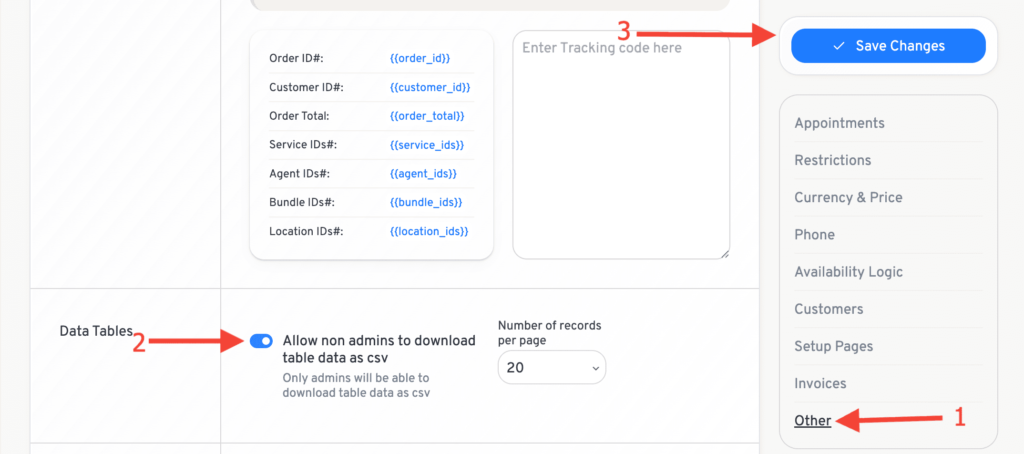
Once enabled, your LatePoint agent users will see the option to download CSV files for data such as appointments, orders, and more.
Was this doc helpful?
What went wrong?
We don't respond to the article feedback, we use it to improve our support content.
On this page