
- How to Display Tax-Inclusive Prices in LatePoint
- Bundled Services
- Managing Bookings With The New Shopping Cart
- Set custom start date for the calendar on your booking form
- How to make Phone Number a required field?
- Add booking form directly on a page
- Redirect to a custom “Thank you” page after booking is complete.
- Adding a booking button to your page
- Change 12/24 hour time system
- How to skip agent selection step and have agent automatically assigned
- What does “Charge Amount” and Minimum and Maximum Price values mean?
- Coupon Management
- Add custom content before or after booking steps
- Customize Book Button Appearance
- Add preselected Agent, Service or Location on Book Appointment Button or Form
- How to change time slot style on the calendar?
- Custom CSS for changing colors
- Booking Form Editor
- Specify which services, agents and locations will be available on a booking form
- How to pick specific categories to be displayed on the booking form
- How to show only services from specific category
- Set custom fonts for the booking form
- How to setup Facebook Pixel
- How to Disable the Messaging Functionality in LatePoint
- How to upgrade to Version 5?
- How to Update to Version 5.1.0
- Which addons are part of a PRO bundle in version 5?
- How to deactivate my license from a website I no longer use.
- Redirect to a custom “Thank you” page after booking is complete.
- How to add a link to terms of service checkbox custom field
- Edit content of the left panel section
- How to enable self hosted Google Calendar setup?
- How does LatePoint send emails?
- How to enable debug log?
- Add to Calendar link is not working
- Getting “One of the plugins is invalid” error when installing add-ons
- Error: unexpected ‘int’, expecting function…
- Service categories not showing during booking process
- Error: Cannot read properties of null (reading: verifyBuyer)
- WordPress Users still can’t login, even when “Use WordPress users as customers” option is checked
- New service is being created when trying to update existing service.
- Auto-sync of events from Google Calendar is not working
Adding a booking button to your page
There are three ways of adding a booking button:
Shortcode
You can add this shortcode to your page:
[latepoint_book_button]You can also generate a shortcode using PHP in your code:
<?php echo do_shortcode('[latepoint_book_button]'); ?>You can further customize it by using shortcode attributes, for example:
[latepoint_book_button selected_agent="1" hide_side_panel="yes"]List of available attributes
[latepoint_shortcode_attributes_customize_button_appearance]
[latepoint_shortcode_attributes_customize_form_appearance]
[latepoint_shortcode_attributes_skip_steps]
Block Element
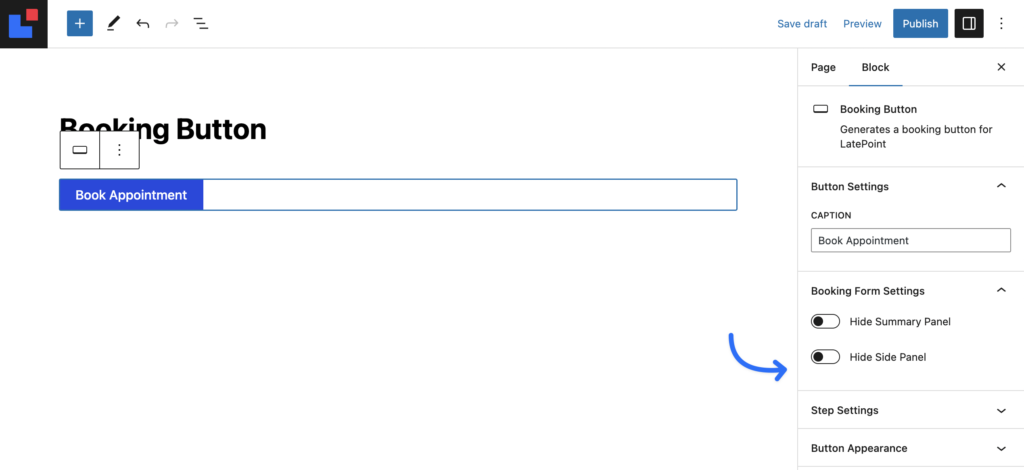
If you are using a WordPress theme that supports Block Elements, you can search for a booking button element in a list of available Blocks.
You can then control all of the attributes of the booking button using a visual interface, without having to deal with shortcodes or custom data attributes:
Attaching a trigger to an existing element
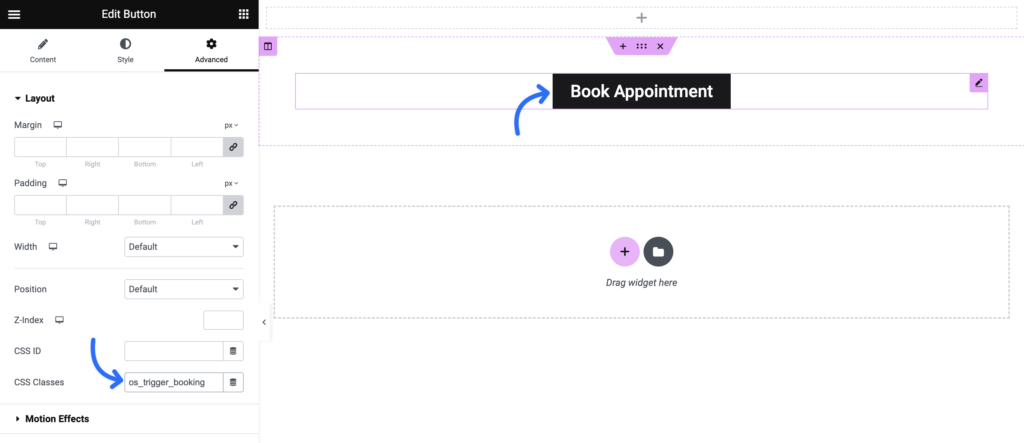
If your are using a page builder or some custom button that you want to open a booking modal when clicked, you can simply add os_trigger_booking class to that button, which will convert it into a clickable booking button.
Here is an example of adding it to a custom html that you have in your code:
<a href="#" class="os_trigger_booking">Book Now</a>Here is an example from Elementor plugin:
Setting additional attributes
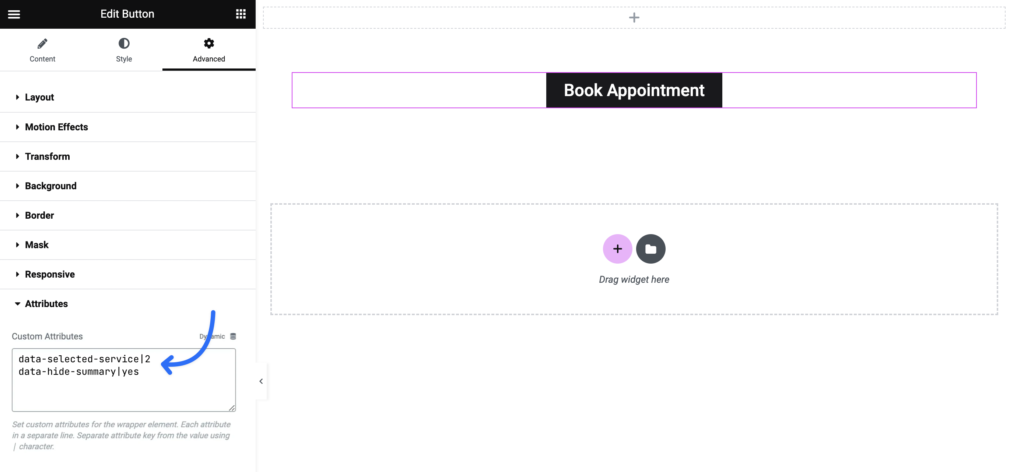
You can also set all of the attributes, that are available in the regular shortcode, for this trigger element. Just replace underscore with a dash and use data- attribute of the element. For example hide_summary=”yes” will turn into data-hide-summary=”yes”.
Here is an example of adding it to a custom html that you have in your code:
<a href="#" class="os_trigger_booking" data-selected-service="2">Book Now</a>Here is an example of setting it inside of the Elementor plugin:
We don't respond to the article feedback, we use it to improve our support content.