
- How to Display Tax-Inclusive Prices in LatePoint
- Bundled Services
- Managing Bookings With The New Shopping Cart
- Set custom start date for the calendar on your booking form
- How to make Phone Number a required field?
- How to Show Only Services or Only Bundles in a Booking Form
- How to Set Base Fee for Group Bookings
- How to Show Custom Display Price for Bundles
- Add booking form directly on a page
- Redirect to a custom “Thank you” page after booking is complete.
- Add custom content before or after booking steps
- Customize Book Button Appearance
- Add preselected Agent, Service or Location on Book Appointment Button or Form
- How to change time slot style on the calendar?
- Custom CSS for changing colors
- Booking Form Editor
- Specify which services, agents and locations will be available on a booking form
- How to pick specific categories to be displayed on the booking form
- How to show only services from specific category
- Set custom fonts for the booking form
- How to setup Facebook Pixel
- How to Disable the Messaging Functionality in LatePoint
- How to upgrade to Version 5?
- How to Update to Version 5.1.0
- Which addons are part of a PRO bundle in version 5?
- How to deactivate my license from a website I no longer use.
- Redirect to a custom “Thank you” page after booking is complete.
- How to add a link to terms of service checkbox custom field
- Edit content of the left panel section
- How to enable self hosted Google Calendar setup?
- How does LatePoint send emails?
- How to enable debug log?
- Add to Calendar link is not working
- Getting “One of the plugins is invalid” error when installing add-ons
- Error: unexpected ‘int’, expecting function…
- Service categories not showing during booking process
- Error: Cannot read properties of null (reading: verifyBuyer)
- WordPress Users still can’t login, even when “Use WordPress users as customers” option is checked
- New service is being created when trying to update existing service.
- Auto-sync of events from Google Calendar is not working
Apple Calendar Sync Setup
1. First step is to install and activate the Apple Calendar Add-on. You can find it on the “Add-ons” page in your LatePoint admin:

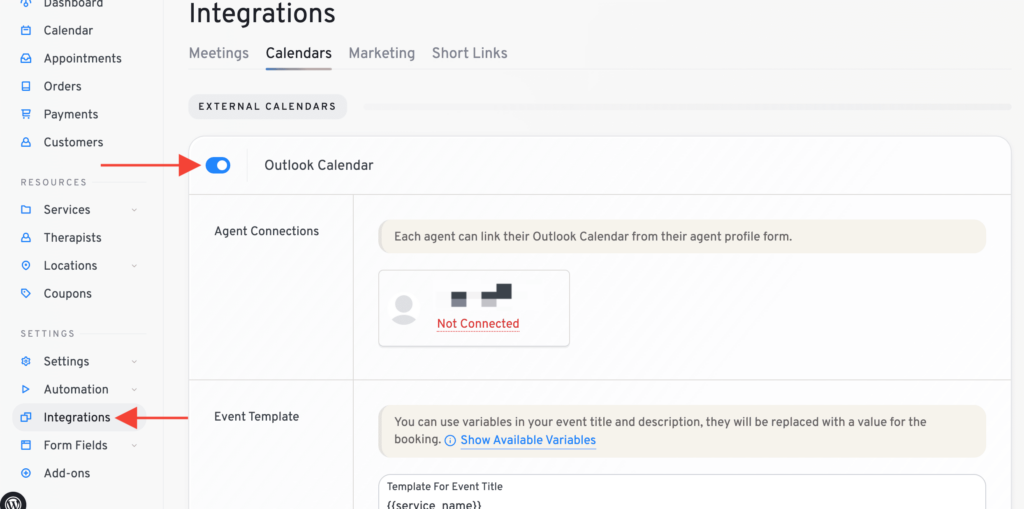
2. Enable it under Integrations -> Calendars:
3. Now follow the instructions and connect the agent with Apple calendar on the very bottom of “Edit Agent” page.

4. Once connected, you’ll be able to pick calendars it pulls and pushes events to and the box will change to green with a new link “Open Sync Manger”:

One way Sync
When you open the sync manager, you will see two tabs: Bookings in Latepoint and Apple Events. First tab shows bookings of the selected agent in your LatePoint database, you can sync either all of them (Sync all bookings to Apple link) or pick individually by clicking on a circular arrows icon next to each booking. Synced bookings will appear green.

Two way Sync
If you want two-way sync (Apple calendar will ping your server everytime there is a change on connected calendar) you will need to click “Enable Auto-Sync” button

Once two-way sync is enabled it will turn green, you can disable it anytime you want if you wish so.
Events on my Calendar
When you have events from your Apple Calendar synced to LatePoint database, they will appear in your LatePoint calendar with a distinct Apple logo with white box with blue border:

And on a timeline:

We don't respond to the article feedback, we use it to improve our support content.