
- How to Display Tax-Inclusive Prices in LatePoint
- Bundled Services
- Managing Bookings With The New Shopping Cart
- Set custom start date for the calendar on your booking form
- How to make Phone Number a required field?
- How to Show Only Services or Only Bundles in a Booking Form
- How to Set Base Fee for Group Bookings
- How to Show Custom Display Price for Bundles
- Add booking form directly on a page
- Redirect to a custom “Thank you” page after booking is complete.
- Add custom content before or after booking steps
- Customize Book Button Appearance
- Add preselected Agent, Service or Location on Book Appointment Button or Form
- How to change time slot style on the calendar?
- Custom CSS for changing colors
- Booking Form Editor
- Specify which services, agents and locations will be available on a booking form
- How to pick specific categories to be displayed on the booking form
- How to show only services from specific category
- Set custom fonts for the booking form
- How to setup Facebook Pixel
- How to Disable the Messaging Functionality in LatePoint
- How to upgrade to Version 5?
- How to Update to Version 5.1.0
- Which addons are part of a PRO bundle in version 5?
- How to deactivate my license from a website I no longer use.
- Redirect to a custom “Thank you” page after booking is complete.
- How to add a link to terms of service checkbox custom field
- Edit content of the left panel section
- How to enable self hosted Google Calendar setup?
- How does LatePoint send emails?
- How to enable debug log?
- Add to Calendar link is not working
- Getting “One of the plugins is invalid” error when installing add-ons
- Error: unexpected ‘int’, expecting function…
- Service categories not showing during booking process
- Error: Cannot read properties of null (reading: verifyBuyer)
- WordPress Users still can’t login, even when “Use WordPress users as customers” option is checked
- New service is being created when trying to update existing service.
- Auto-sync of events from Google Calendar is not working
Setting up PayPal payment processor in LatePoint
LatePoint supports PayPal for accepting online payments, customers can pay using PayPal, and depending on your PayPal account, country, and customer eligibility, additional payment methods such as Pay Later, and debit or credit cards may also be available.
Connect Your PayPal Account
Step 1: Go to LatePoint > Settings > Payments and enable the PayPal Checkout payment processor.
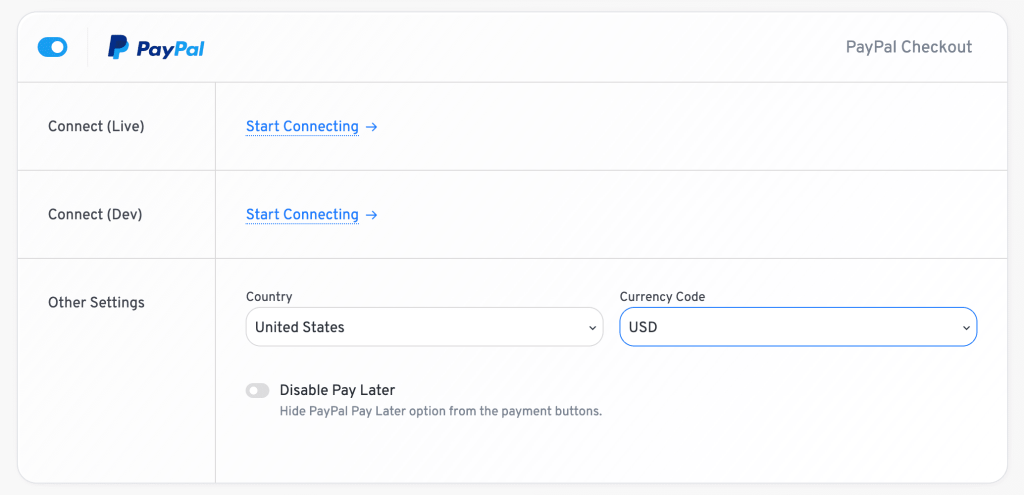
Step 2: Choose the environment.
You will see two connection options:
- Connect (Live) – Connects your live PayPal Business account to accept real customer payments.
- Connect (Dev) – Connects your PayPal Sandbox account for testing before going live.
We recommend testing your booking flow using the Dev environment before switching to Live.
Step 3: Connect your PayPal account.
Click Start Connecting under your preferred environment.
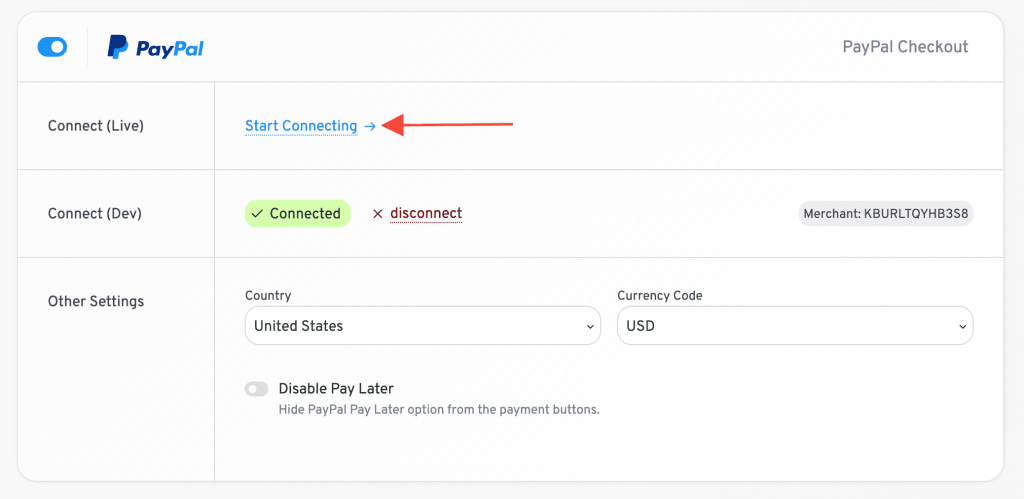
You will be redirected to PayPal, where you’ll be asked to log in to your PayPal Business account and authorize LatePoint to process payments on your behalf.
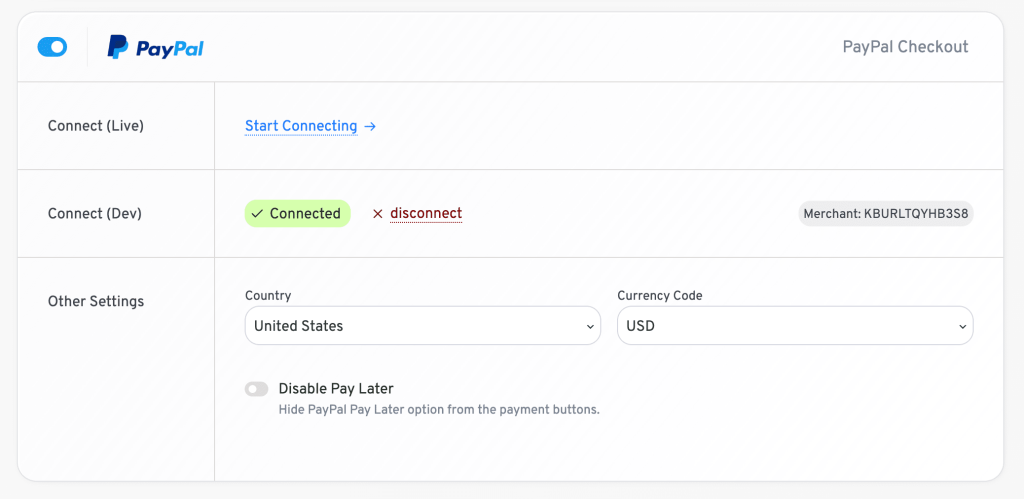
After granting permission, you’ll be redirected back to your website.
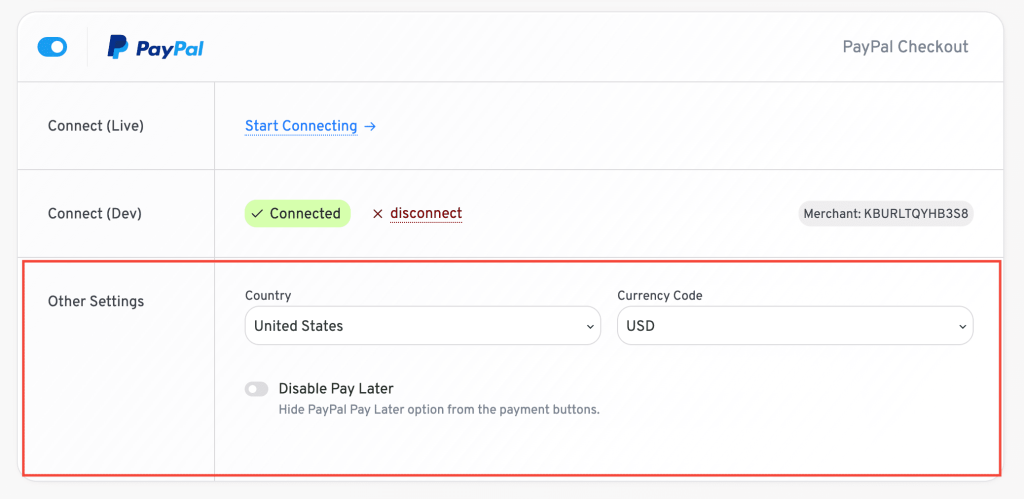
If the connection is successful, the status will change to Connected, and your PayPal Merchant ID will be displayed.
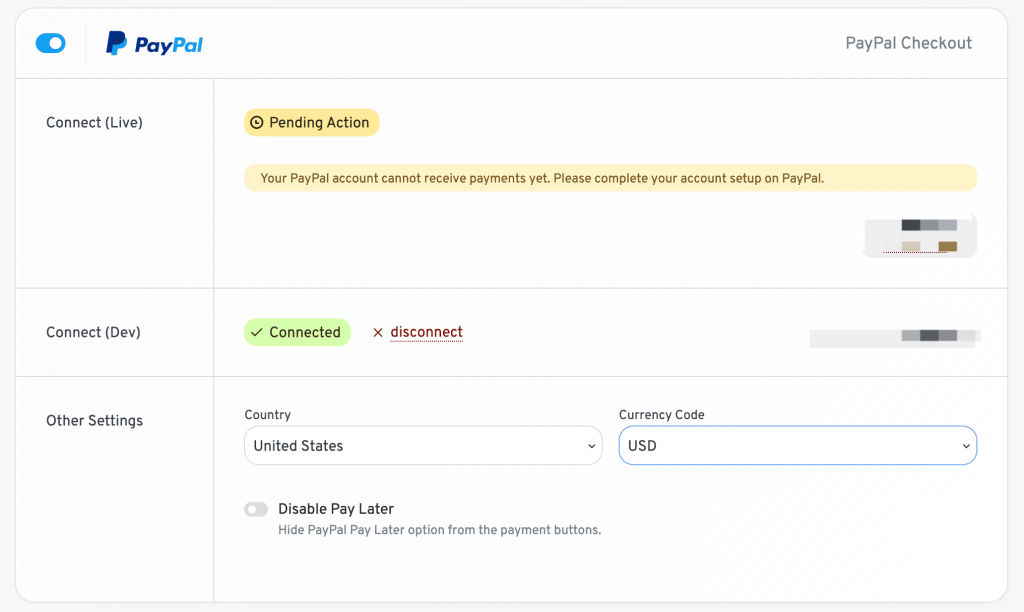
If PayPal requires additional verification or configuration before your account can receive payments, the status will show Pending Action along with instructions provided by PayPal.
Configure Payment Settings
After connecting your account, configure the available payment settings.
Country
Select the country where your business is registered.
Currency Code
Choose the currency you want to accept payments in.
Disable Pay Later
Enable this option if you don’t want customers to see the Pay Later option during checkout (when available).
Accept Payments
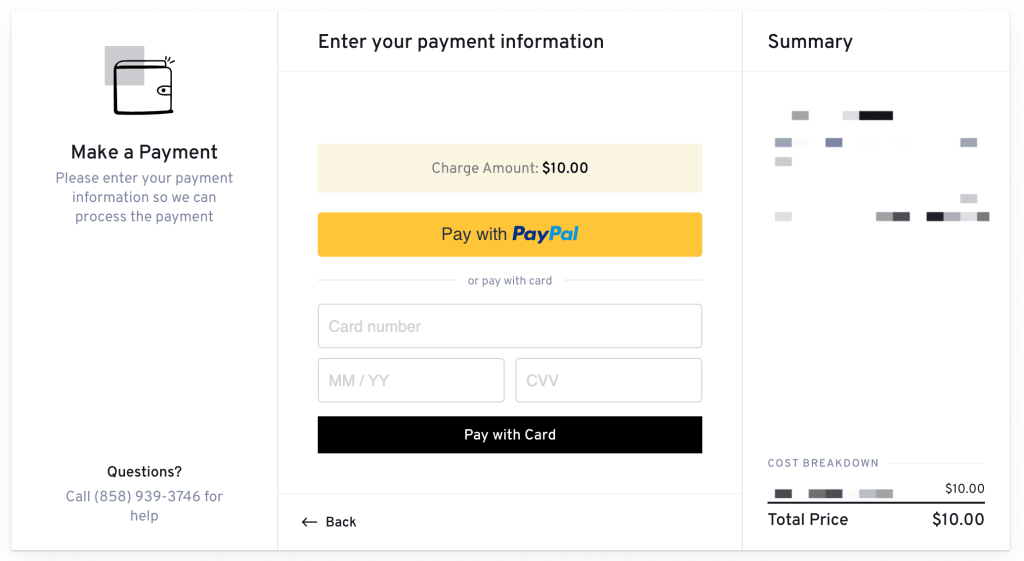
Once PayPal Checkout is configured, customers will see PayPal as a payment option during the booking process.
Depending on your PayPal account configuration, merchant country, and customer eligibility, PayPal may also display additional payment options, including:
- PayPal
- Pay Later
- Debit and Credit Cards
We don't respond to the article feedback, we use it to improve our support content.