
- How to Display Tax-Inclusive Prices in LatePoint
- Bundled Services
- Managing Bookings With The New Shopping Cart
- Set custom start date for the calendar on your booking form
- How to make Phone Number a required field?
- How to Show Only Services or Only Bundles in a Booking Form
- How to Set Base Fee for Group Bookings
- How to Show Custom Display Price for Bundles
- Add booking form directly on a page
- Redirect to a custom “Thank you” page after booking is complete.
- Adding a booking button to your page
- Change 12/24 hour time system
- How to skip agent selection step and have agent automatically assigned
- What does “Charge Amount” and Minimum and Maximum Price values mean?
- Coupon Management
- How to Show Your WordPress Website’s Timezone on the Customer Booking Form Instead of Their Local Timezone
- How to Create Instant Booking Pages in LatePoint
- How to create Service Extras
- Enabling Recurring Appointments in LatePoint
- How to Set Up Maximum Bookings Per Day
- Add custom content before or after booking steps
- Customize Book Button Appearance
- Add preselected Agent, Service or Location on Book Appointment Button or Form
- How to change time slot style on the calendar?
- Custom CSS for changing colors
- Booking Form Editor
- Specify which services, agents and locations will be available on a booking form
- How to pick specific categories to be displayed on the booking form
- How to show only services from specific category
- Set custom fonts for the booking form
- How to setup Facebook Pixel
- How to Disable the Messaging Functionality in LatePoint
- How to upgrade to Version 5?
- How to Update to Version 5.1.0
- Which addons are part of a PRO bundle in version 5?
- How to deactivate my license from a website I no longer use.
- Redirect to a custom “Thank you” page after booking is complete.
- How to add a link to terms of service checkbox custom field
- Edit content of the left panel section
- How to enable self hosted Google Calendar setup?
- How does LatePoint send emails?
- How to enable debug log?
- Add to Calendar link is not working
- Getting “One of the plugins is invalid” error when installing add-ons
- Error: unexpected ‘int’, expecting function…
- Service categories not showing during booking process
- Error: Cannot read properties of null (reading: verifyBuyer)
- WordPress Users still can’t login, even when “Use WordPress users as customers” option is checked
- New service is being created when trying to update existing service.
- Auto-sync of events from Google Calendar is not working
How to Set Up Maximum Bookings Per Day
The Maximum Bookings Per Day feature lets you limit how many appointments can be booked on a single day. Once the limit is reached, that day becomes unavailable for new customer bookings.
This helps prevent overbooking, balance workloads, and reserve time for your team.
Where to configure it
You can configure a daily booking limit for both Services and Agents.
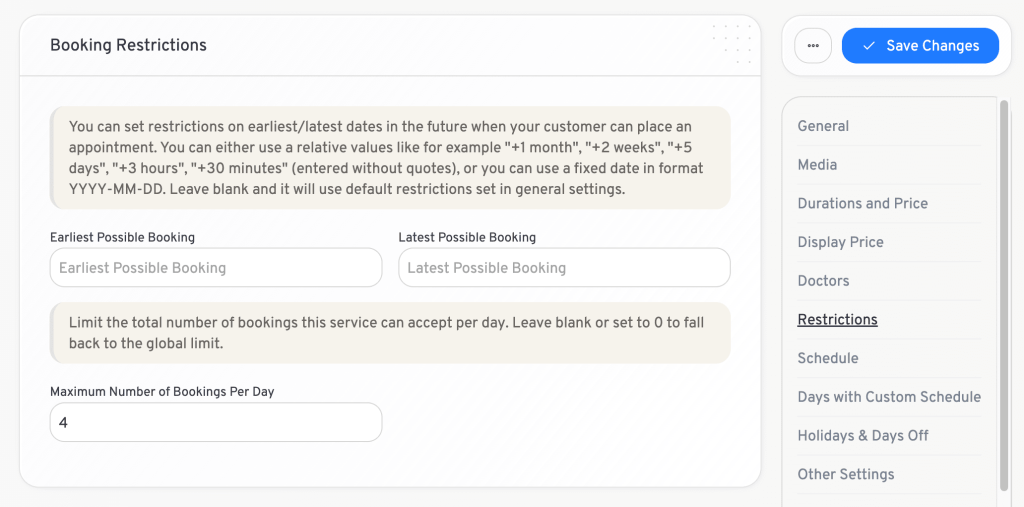
To set a limit for a service, navigate to LatePoint > Services > Edit Service > Booking Restrictions and enter the desired value in Maximum Number of Bookings Per Day.
To set a limit for an agent, navigate to LatePoint > Agents > Edit Agent > Booking Restrictions and enter the desired value in Maximum Number of Bookings Per Day.
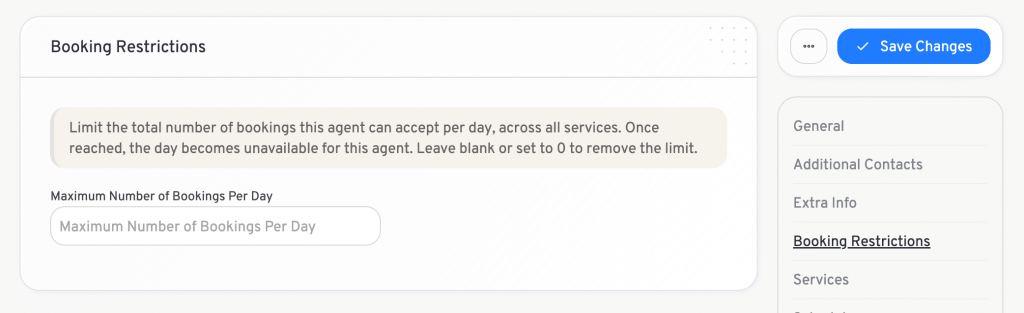
Leave the field empty or set it to 0 to disable the limit.
How it works
Once the configured number of bookings is reached, customers will no longer be able to book that day, even if there are still available time slots. If a booking is cancelled or no longer blocks availability, the day automatically becomes available for booking again.
A service limit applies only to that service, while an agent limit applies only to the selected agent. The daily booking limit only affects bookings made through the customer booking form, administrators can still create appointments manually from the WordPress dashboard. Only bookings with statuses that block availability are counted toward the daily limit.
Example
If a service has a maximum of 5 bookings per day, customers can make up to five bookings for that service on a given day. After the fifth booking, that day becomes unavailable for additional bookings until one of the existing bookings is cancelled or otherwise no longer blocks availability.
We don't respond to the article feedback, we use it to improve our support content.