
- How to Display Tax-Inclusive Prices in LatePoint
- Bundled Services
- Managing Bookings With The New Shopping Cart
- Set custom start date for the calendar on your booking form
- How to make Phone Number a required field?
- How to Show Only Services or Only Bundles in a Booking Form
- How to Set Base Fee for Group Bookings
- How to Show Custom Display Price for Bundles
- Add booking form directly on a page
- Redirect to a custom “Thank you” page after booking is complete.
- Add custom content before or after booking steps
- Customize Book Button Appearance
- Add preselected Agent, Service or Location on Book Appointment Button or Form
- How to change time slot style on the calendar?
- Custom CSS for changing colors
- Booking Form Editor
- Specify which services, agents and locations will be available on a booking form
- How to pick specific categories to be displayed on the booking form
- How to show only services from specific category
- Set custom fonts for the booking form
- How to setup Facebook Pixel
- How to Disable the Messaging Functionality in LatePoint
- How to upgrade to Version 5?
- How to Update to Version 5.1.0
- Which addons are part of a PRO bundle in version 5?
- How to deactivate my license from a website I no longer use.
- Redirect to a custom “Thank you” page after booking is complete.
- How to add a link to terms of service checkbox custom field
- Edit content of the left panel section
- How to enable self hosted Google Calendar setup?
- How does LatePoint send emails?
- How to enable debug log?
- Add to Calendar link is not working
- Getting “One of the plugins is invalid” error when installing add-ons
- Error: unexpected ‘int’, expecting function…
- Service categories not showing during booking process
- Error: Cannot read properties of null (reading: verifyBuyer)
- WordPress Users still can’t login, even when “Use WordPress users as customers” option is checked
- New service is being created when trying to update existing service.
- Auto-sync of events from Google Calendar is not working
Managing Event Registrations
After a customer successfully registers for an event, LatePoint creates an Event Registration.
Viewing Registrations
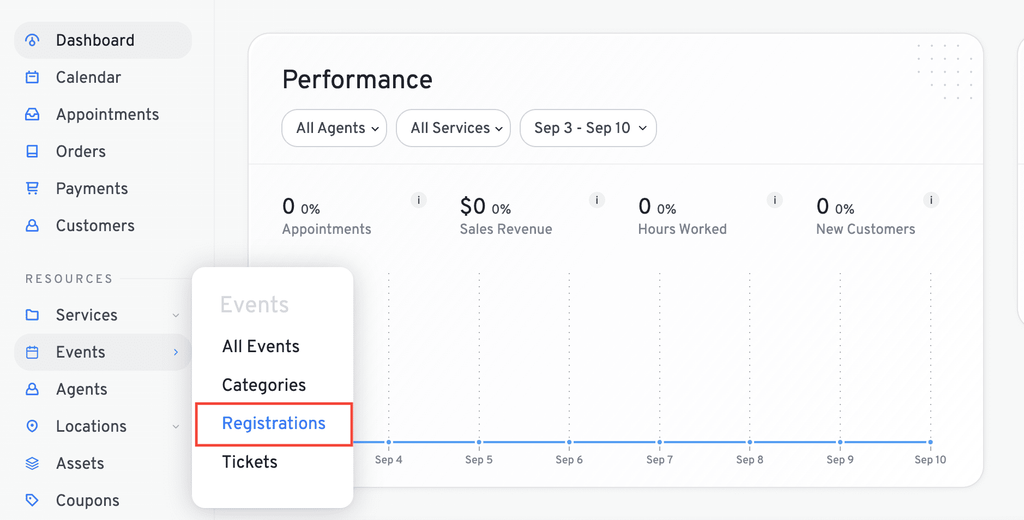
You can view and manage registrations from LatePoint > Events > Registrations
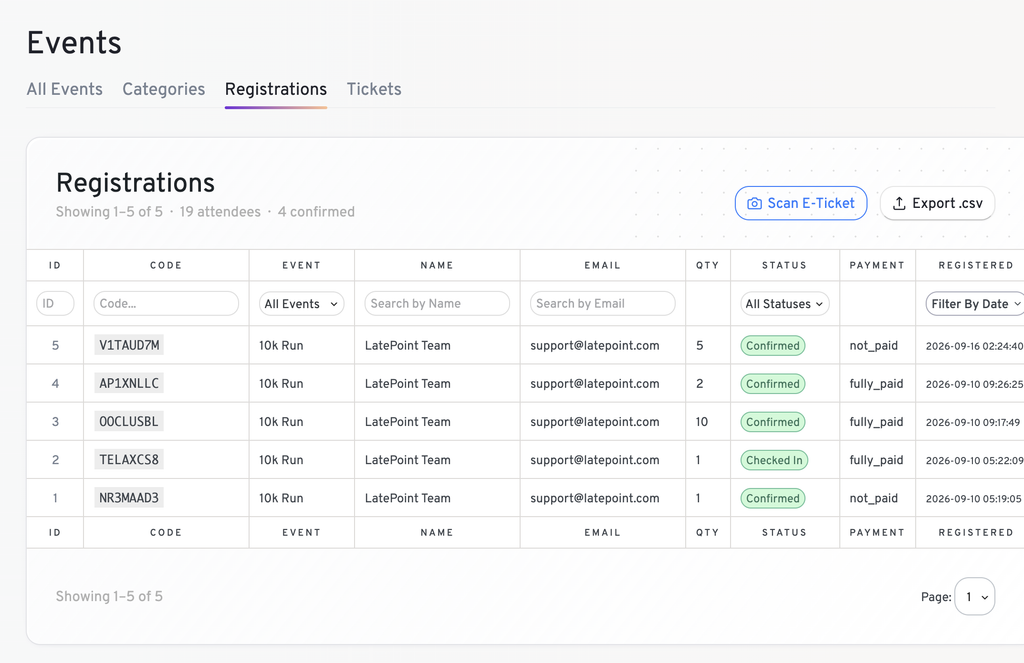
The Registrations page shows information such as:
- Event
- Customer
- Registration code
- Number of tickets
- Registration status
- Payment status
- Registration date
Registration Summary
At the top of the page, you can see a quick summary of the registrations currently shown:
- Attendees: The total number of tickets across the registrations shown. Since one registration can include multiple tickets, the attendee count can be higher than the number of registrations.
- Confirmed: The number of registrations currently marked as Confirmed. Pending, Cancelled, and Checked In registrations are not included.
Registration Statuses
An Event Registration can have one of the following statuses:
- Pending
- Confirmed
- Cancelled
- Checked In
A cancelled registration no longer consumes Event capacity.
Checking In Registrations
There are two ways to check in an event registration.
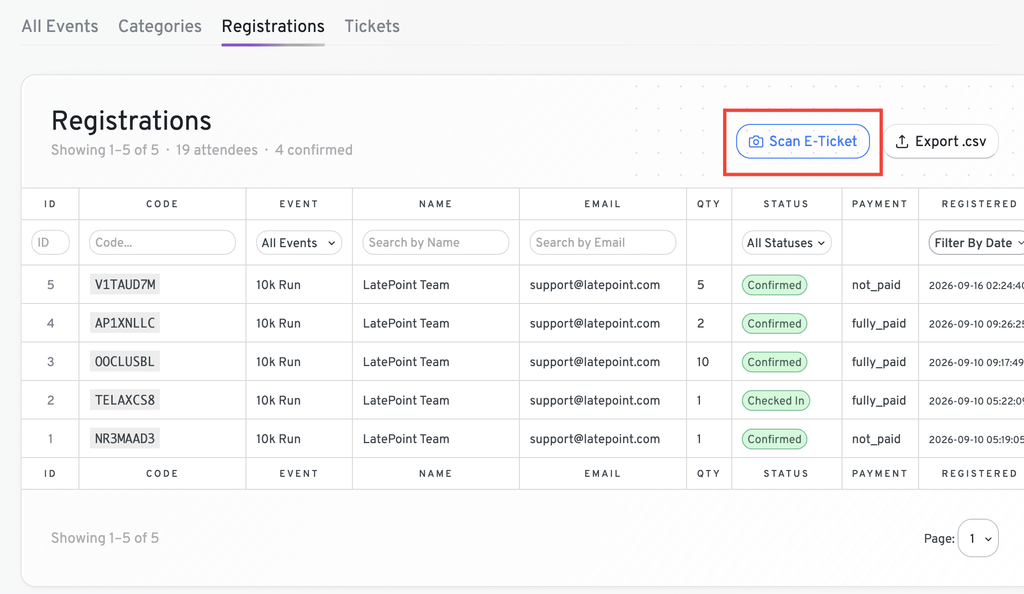
When E-Tickets are enabled, individual tickets can be checked in by scanning their QR codes.
For a registration with multiple tickets, the registration is automatically marked as Checked In once all tickets belonging to that registration have been checked in for the event date.
For example:
- 1 ticket: Check in the ticket > Registration becomes Checked In.
- 3 tickets: All 3 tickets must be checked in > Registration becomes Checked In.
Cancelling a Registration
You can cancel a registration directly from the Registrations page.
When a registration is cancelled:
- Its status changes to Cancelled.
- The registration no longer consumes Event capacity.
- The Event Registration Cancelled automation trigger is fired.
- Associated E-Tickets are voided when E-Tickets are enabled.
If the registration belongs to an order that is cancelled, LatePoint also cancels the associated Event Registration.
Export Registrations
Event registrations can be exported as a CSV file.
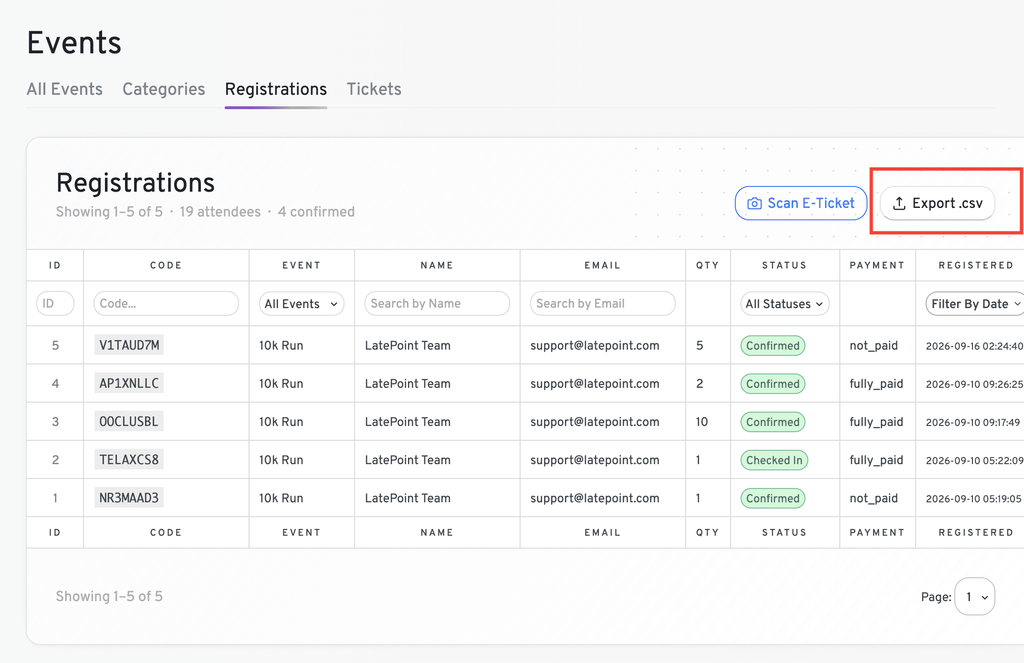
This can be useful for creating an attendee list or managing event registrations outside LatePoint.
The export includes registration information such as the event, customer, ticket quantity, registration status, payment status, and registration date.
We don't respond to the article feedback, we use it to improve our support content.