
- How to Display Tax-Inclusive Prices in LatePoint
- Bundled Services
- Managing Bookings With The New Shopping Cart
- Set custom start date for the calendar on your booking form
- How to make Phone Number a required field?
- How to Show Only Services or Only Bundles in a Booking Form
- How to Set Base Fee for Group Bookings
- How to Show Custom Display Price for Bundles
- Add booking form directly on a page
- Redirect to a custom “Thank you” page after booking is complete.
- Adding a booking button to your page
- Change 12/24 hour time system
- How to skip agent selection step and have agent automatically assigned
- What does “Charge Amount” and Minimum and Maximum Price values mean?
- Coupon Management
- How to Show Your WordPress Website’s Timezone on the Customer Booking Form Instead of Their Local Timezone
- How to Create Instant Booking Pages in LatePoint
- How to create Service Extras
- Enabling Recurring Appointments in LatePoint
- How to Set Up Maximum Bookings Per Day
- Add custom content before or after booking steps
- Customize Book Button Appearance
- Add preselected Agent, Service or Location on Book Appointment Button or Form
- How to change time slot style on the calendar?
- Custom CSS for changing colors
- Booking Form Editor
- Specify which services, agents and locations will be available on a booking form
- How to pick specific categories to be displayed on the booking form
- How to show only services from specific category
- Set custom fonts for the booking form
- How to setup Facebook Pixel
- How to Disable the Messaging Functionality in LatePoint
- How to upgrade to Version 5?
- How to Update to Version 5.1.0
- Which addons are part of a PRO bundle in version 5?
- How to deactivate my license from a website I no longer use.
- Redirect to a custom “Thank you” page after booking is complete.
- How to add a link to terms of service checkbox custom field
- Edit content of the left panel section
- How to enable self hosted Google Calendar setup?
- How does LatePoint send emails?
- How to enable debug log?
- Add to Calendar link is not working
- Getting “One of the plugins is invalid” error when installing add-ons
- Error: unexpected ‘int’, expecting function…
- Service categories not showing during booking process
- Error: Cannot read properties of null (reading: verifyBuyer)
- WordPress Users still can’t login, even when “Use WordPress users as customers” option is checked
- New service is being created when trying to update existing service.
- Auto-sync of events from Google Calendar is not working
How to Show Custom Display Price for Bundles
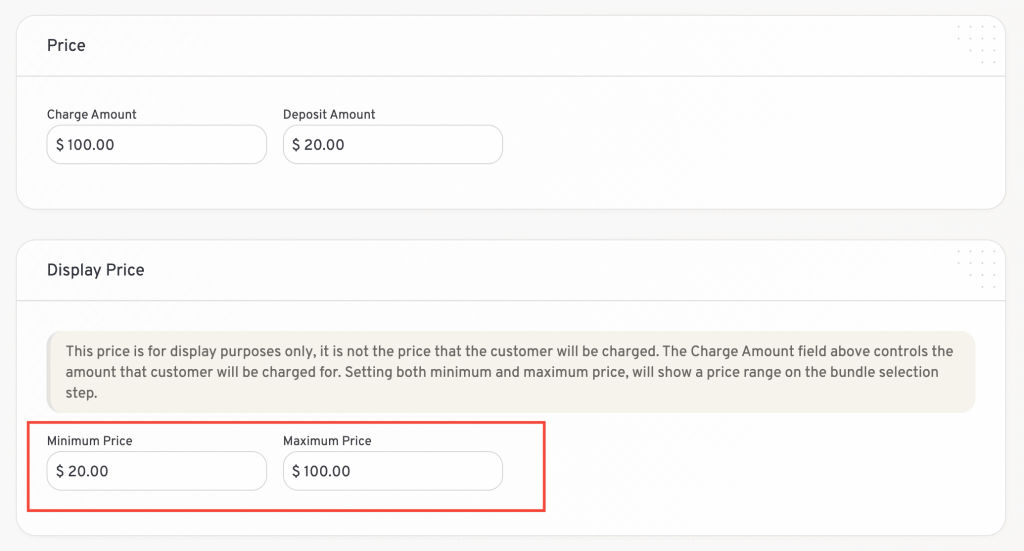
Bundles support a Display Price that is separate from the Charge Amount. This allows you to display a promotional price, starting price, or price range on the booking form without changing the amount charged at checkout.
Set a Display Price
- Go to LatePoint > Services.
- Open the bundle you want to edit.
- Scroll to the Display Price section.
- Enter a Minimum Price and, optionally, a Maximum Price.
- Save the bundle.
How It Works
- Charge Amount is the amount the customer is charged.
- Display Price only affects the price shown on the booking form.
- If Minimum and Maximum Price are the same (or only a minimum is set), a single price is displayed.
- If both values are different, the booking form displays the minimum price with a Starts From label.
- If no Display Price is set, the bundle’s Charge Amount is displayed instead.
Display Price works the same way for both Services and Bundles. For a detailed explanation of how it works, see the Display Tax Inclusive Prices article: https://latepoint.com/docs/display-tax-inclusive-prices/ .
Was this doc helpful?
What went wrong?
We don't respond to the article feedback, we use it to improve our support content.