


What Is LatePoint? (Features, Pricing, Free vs Pro)
LatePoint is a WordPress plugin for appointment booking, scheduling and event booking, made by Brainstorm Force, the company behind Astra. It’s free on WordPress.org, and LatePoint Pro adds advanced features, starting at $79 for the first year on one site. This guide explains what it does, what’s free, what needs Pro and what it costs.
Disclosure: LatePoint is our product, developed by Brainstorm Force. Amelia and Bookly are independent products. We’ve compared them based on the information available at the time of writing, including pricing and features checked on October 7, 2026. Pricing and features may change, so we recommend checking the official websites for the latest information before making a purchase.
Key facts
| What it is | A WordPress plugin for appointment booking, scheduling and event booking |
| Is it free? | Yes. The core plugin (we call it the free plugin) is free on WordPress.org. LatePoint Pro, the paid add-on, adds the rest |
| Free plugin includes | Booking form customization, Stripe Connect, PayPal, Razorpay, Pay Later (pay later), email notifications, One agent ,Events, customer dashboard, activity log and MCP (a way for AI assistants to work with your bookings) |
| LatePoint Pro adds | Recurring and group bookings, reminders, customer rescheduling, SMS and WhatsApp, calendar and video meeting integrations, six more payment processors, coupons, taxes, invoices, event tickets with QR check-in, and White Label |
| Pro pricing (USD) | Starter (1 site): $79 first year, $99 regular, $199 lifetime. Scale (5 sites): $149 / $249 / $399. Agency (100 sites): $299 / $499 / $599 |
| Plans differ by | Site count only. Every paid plan includes every feature |
| Renewals | Needed only for updates and support. Your sites keep working if you do not renew |
| Guarantee | 14-day money-back guarantee |
| Requirements | WordPress 6.5+ and PHP 7.4+ (WordPress 6.9+ only for the AI feature) |
| Best for | Service businesses that run on WordPress. Not for businesses off WordPress, or anyone who wants a hosted scheduling link |
What is LatePoint?
LatePoint is a WordPress plugin for appointment booking, scheduling and event booking. It lets customers book one-on-one appointments and register for events such as workshops and classes, pay online and get email notifications, all on your own website.
We built it to give WordPress sites a multi-step booking form, an admin calendar, a customer dashboard and automatic notifications. Clients book themselves, and you do not need a separate booking platform.
It is made for businesses that sell time, such as salons, coaches, clinics, tutors and photographers. In LatePoint, the staff who provide your services are called agents. You will see that word throughout this article.
How does LatePoint work?
LatePoint works in four steps, and everything runs inside WordPress.
- Set up your business. After you activate the plugin,a four-step setup wizard covers notifications, services and work hours.
- Add the booking form to a page. Use a shortcode (a short piece of text that WordPress turns into the form) or a LatePoint block in the WordPress block editor. Elementor and Bricks work too.
- Customers pick a time and book. Available times come from your work hours, special schedule days, holidays and days off, so customers only see times you can take.
- Follow-up runs on its own. Email notifications are free. Reminders, SMS and WhatsApp need LatePoint Pro. Customers can view and cancel bookings in the free customer dashboard.
Who is LatePoint for, and what are its trade-offs?
LatePoint suits solo providers and small to mid-size teams that want to run bookings on their own WordPress site, under their own branding. Agencies can use it for client sites too. It is a weaker fit if your business does not use WordPress, or if you want a hosted scheduling link with no site to maintain.
What works well: a free plugin you can take real bookings with, a customizable booking form, multiple payment processors, Events and more.
What needs LatePoint Pro?
Recurring and group bookings, reminders, calendar sync, coupons, invoices and customer rescheduling. If you work solo and mostly need simple appointments and events, the free plugin may be all you need.
Is LatePoint free? Free vs Pro features
Yes, LatePoint is free. The free plugin installs from WordPress.org at no cost, never expires, and is enough to take real bookings. LatePoint Pro, the paid add-on, adds advanced booking types, six more payment processors, reminders, SMS and WhatsApp, calendar and video integrations, and extra admin tools. The full list is on our Free vs Pro page.
| Area | Free plugin | LatePoint Pro adds |
|---|---|---|
| Booking and scheduling | Booking form customization, Instant Booking Pages, special schedule days, holidays and days off, customer cancellations, duplicate service, Single location, | Service categories, extras, bundles, shopping cart, recurring appointments, group bookings, multiple locations, bookable assets (rooms or equipment), customer rescheduling, custom fields, address autocomplete, multiple durations, timezone selector |
| Payments | Stripe Connect, PayPal, Razorpay, Pay Later | Braintree, Flutterwave, MercadoPago, Mollie, Paystack, Square; coupons; tax; invoices; payment links; refunds |
| Notifications | Email notifications, Scheduled Jobs monitor | Reminders, SMS, WhatsApp, webhooks (send booking data to other apps) |
| Events | Create and publish events, capacity and pricing, registrations | Ticket types (such as General and VIP), QR code e-tickets and check-in |
| Integrations | MCP (AI assistant access) | Google, Outlook and Apple Calendar; Zoom, Google Meet, Microsoft Teams; WooCommerce; SureCart; Mailchimp; social login; Cloudflare Turnstile (spam protection) |
| Admin and team | Activity log, customer dashboard, partial import/export | Agent dashboard, custom roles, White Label, chat with agents, full import/export |
Deposits are available on all plans, including the free plugin. .
LatePoint pricing
LatePoint Pro costs $79 to $299 for the first year on an annual license, or a one-time $199 to $599 for a lifetime license. The three plans differ only by site count: Starter (1 site), Scale (5 sites) and Agency (100 sites). Every plan includes every feature. All prices are in USD.
How much does LatePoint cost?
Our pricing page currently offers up to 40% off the first year, with regular prices shown struck through.
| Plan | Sites | Annual, first year | Annual, regular | Lifetime |
|---|---|---|---|---|
| Starter | 1 | $79 | $99 | $199 |
| Scale | 5 | $149 | $249 | $399 |
| Agency | 100 | $299 | $499 | $599 |
The first-year discount is about 20% on Starter and about 40% on Scale and Agency, which is why the page says “up to” 40%. It is introductory pricing, and renewals are at the regular price.
What happens when a LatePoint license renews?
Annual renewals are charged at the regular price: $99 for Starter, $249 for Scale and $499 for Agency. You need an active annual license to get updates and support. If you do not renew, your sites keep working. Lifetime licenses include lifetime updates and support. LatePoint also has a 14-day money-back guarantee, and you can change plans or cancel your account at any time.
Can I pay for a lifetime license in installments?
Yes. You can split a lifetime plan into 11 monthly payments of $19.99 (Starter), $39.99 (Scale) or $59.99 (Agency). The installments add up to about 10% more than paying once. For Starter, 11 payments of $19.99 come to $219.89, compared with $199 up front.
Which LatePoint plan should you choose?
Choose by site count, because the features are the same on every plan. Starter is for one site, Scale covers up to five, and Agency covers up to 100 client sites. A lifetime license makes sense if you expect to use LatePoint for years: at the regular $99 renewal price, a $199 Starter lifetime license equals about two years of renewals. To try it first, start with the free plugin.
Next step: See current LatePoint Pro pricing, or start with the free plugin and upgrade later.
How do the booking form and scheduling work?
LatePoint’s booking form is a step-by-step wizard that takes a customer from picking a service to a confirmed booking. LatePoint builds the time slots customers see from your work hours, holidays and booking rules.It shows only the steps that apply to your setup. Form customization, Instant Booking Pages, special schedule days and holidays are all in the free plugin. Custom fields, group bookings, service extras and multiple locations add steps, and those need LatePoint Pro.
How do you customize the LatePoint booking form?
You customize the form in LatePoint’s booking form settings, and every change shows in a live preview. Drag the steps into the order you want and save. LatePoint keeps the order logical, so confirmation always comes after payment. The Booking Form Editor docs show how. The docs also cover time slot style, colors, fonts, a required phone number and a custom thank-you page.
How do you add the LatePoint booking form to your website?
You can add LatePoint to a page as a popup button, an inline form, a WordPress block, a custom button of your own, or a standalone Instant Booking Page. Most people paste a shortcode into a page, or use a LatePoint block in the WordPress editor. You can also preselect a service, agent or location so customers skip those steps, which suits a page about one specific service. Instant Booking Pages are free shareable links for one service, agent or location, so you can send a customer straight to a booking form without building a page (guide).
The two shortcodes you will use most are [latepoint_book_button], which shows a button that opens the form in a popup, and [latepoint_book_form], which places the form directly on the page. The shortcode docs list every option.
How does LatePoint decide which times are available?
LatePoint shows only times you can actually take. It builds the slots from your work hours (each agent can have their own), special-day schedules that override the weekly pattern for one date, and holidays and days off that block whole days. You can also set the earliest and latest dates customers can book, buffer time around each appointment, and a limit on future bookings per customer.
Two options need LatePoint Pro. Each agent can have a different schedule at each location, and a timezone selector can show customers times in their own timezone. Without it, times follow your WordPress timezone.
What services and booking types does LatePoint support?
LatePoint can sell a simple single-service appointment, or something richer: services with several durations, add-ons, bundles, a cart, repeating appointments, group sessions, shared rooms and multiple locations. Basic services are free. Most advanced types need LatePoint Pro.
With Pro you can group a long menu into service categories, offer several durations for one service (such as 30, 60 or 90 minutes), and sell optional extras that customers add while booking, like a conditioning treatment at a salon (extras guide). Bundles package several services at one total price (docs). A shopping cart lets a customer book several appointments in one visit and pay once (docs). Without Pro, you can still create separate services such as “Massage 1 hour” and “Massage 2 hours”.
What is a service in LatePoint?
A service is something a customer can book. It has a name, a duration, a price and the agents and locations that can deliver it. The free plugin lets you duplicate a service, so a variation takes seconds to set up.
The charge amount is what the customer pays. The minimum and maximum price are only shown as a range on the service tile (docs).
Does LatePoint support recurring appointments?
Yes, with LatePoint Pro. A customer can book a repeating series in one go, so a weekly client does not have to rebook every visit. You choose how often a service can repeat (daily, weekly or monthly) and how many future appointments are allowed. Staff can also create recurring appointments from the admin side. See the recurring appointments docs.
How do group bookings work?
Group bookings let several people reserve the same service slot, and the customer chooses how many people they are booking for. This needs LatePoint Pro. You set a minimum and maximum group size. The price is per person, with an optional base fee charged once per booking. For example, a class at $15 per person with a $10 base fee costs three people ($15 x 3) + $10 = $55 (base fee guide). For online sessions, each person can get their own Zoom, Google Meet or Microsoft Teams link, or everyone can share one.
What are Assets, and when do you need them?
Assets are shared things with a fixed quantity, such as rooms or equipment, and they need LatePoint Pro. LatePoint checks that an asset is free before accepting a booking, so two classes cannot claim the same room. If you stop using one, disable it instead of deleting it so your history stays intact (docs).
Can LatePoint handle multiple locations and agents?
Yes, with LatePoint Pro. The free plugin has one agent and one location. Pro adds more of both, and you can assign services and agents to each location. If you want customers to skip the agent step, set the form to assign whoever is free.
How do you limit bookings and handle no-shows?
LatePoint has two tools for limits and no-shows: a daily cap and no-show restrictions. Every appointment also has a status you can change: Approved, Pending Approval, Cancelled, No Show or Completed.
Maximum bookings per day. You can cap how many bookings one service or agent takes in a day. Once the cap is reached, that day shows as unavailable on the form, even if time slots remain. It reopens if someone cancels. Bookings you create yourself in the admin ignore the cap.
No-show restrictions (needs LatePoint Pro). You choose how many missed appointments trigger a rule. After that, the customer is either blocked from booking or must pay upfront. For example, with a limit of one miss and upfront payment, a customer who skips one appointment pays in advance from then on (docs).
Can you use LatePoint for events?
Yes. LatePoint supports events such as workshops, classes and other ticketed gatherings. Creating and publishing events, setting capacity and price, and taking registrations are all free. Ticket types and QR code e-tickets need LatePoint Pro.
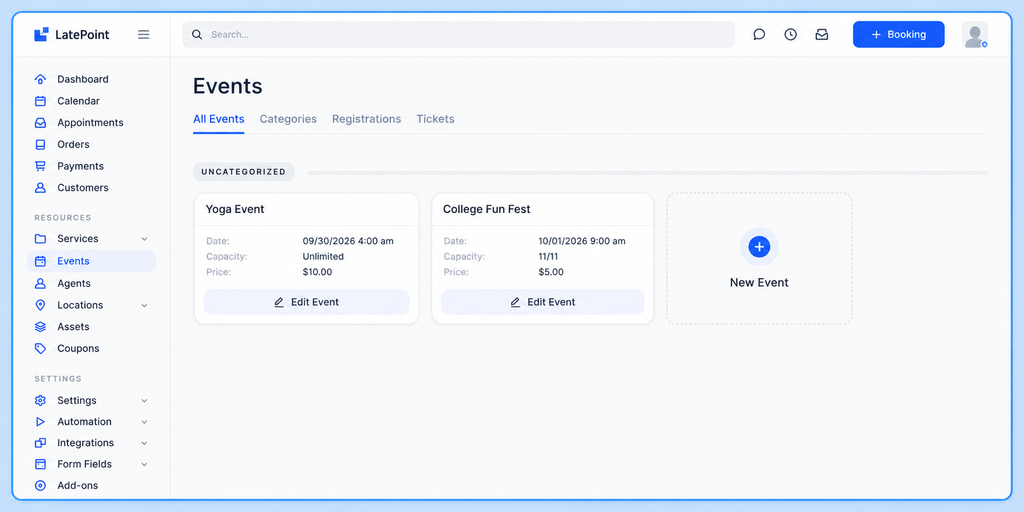
What are LatePoint Events, and why not use appointments?
An appointment is built on a service, an agent and a time slot. That does not suit a one-time Saturday workshop, where the date, seat limit and price belong to the event itself. An event skips the service, agent and time steps and goes straight from event and tickets to customer details and payment (docs). Registrations use the same cart and checkout as appointments, so your payment options carry over.
You show events on a page with the [latepoint_events_list] shortcode or a registration button for one event, which switches to “Sold Out” or “Registration Closed” on its own (docs). Each registration records the customer, ticket count and payment, and you can export a CSV attendee list (docs). Customers get an email when they register or cancel. With LatePoint Pro, one event can sell ticket types such as Adult, Child and VIP, and each registration gets a QR code e-ticket that your staff scan to check people in (ticket types, check-in).
Which should you use: Events, Recurring Appointments or Group Bookings?
Use Events (free) for one standalone activity with a fixed date and seat limit. Use Recurring Appointments (Pro) when one customer books a repeating series with a provider. Use Group Bookings (Pro) when several people share one slot on a provider’s calendar. A paid workshop with a seat limit works on the free plugin. Ticket types or door check-in need Pro.
How do you create an event in LatePoint?
Events are off by default, so you turn them on once in LatePoint’s general settings. Then add an event with a name, a format (in person or online), one or more dates, a registration window and an optional seat limit. Set the status to Published, because only published events accept registrations. The price is multiplied by the number of tickets, and a cancelled registration frees up its seats.
Customer dashboard and accounts
LatePoint’s customer dashboard is a free page where logged-in customers see and manage their own appointments. You add it with a WordPress block or the [latepoint_customer_dashboard] shortcode, and a Customer login block adds a login form.
How do customers log in to LatePoint?
LatePoint gives you three login options: no customer login, password login, or a one-time code instead of a password. A one-time code is a short code sent to the customer by email or text message that they type in to prove it is them. You can also choose email or phone as the main contact method, and customers can still book as guests without creating an account. The settings are explained in LatePoint’s authentication guide.
Customers can cancel from the dashboard in the free plugin. Rescheduling, social login with Google or Facebook, and chat between customers and agents need LatePoint Pro. If the dashboard keeps sending customers back to the login page, a caching plugin is usually the cause: exclude the dashboard page from caching (troubleshooting guide).
Payments, invoices and pricing tools
LatePoint collects payment at the time of booking. The free plugin works with Stripe Connect, PayPal and Razorpay, and LatePoint Pro adds six more processors. LatePoint also handles deposits, pay-later orders, coupons, taxes, payment links, refunds and invoices.
Which payment processors does LatePoint support?
The free plugin supports Stripe Connect, PayPal, Razorpay and Pay Later, which lets customers pay later. LatePoint Pro adds Square, Mollie, MercadoPago, Flutterwave, Braintree and Paystack. That makes nine payment processors in total, not counting Pay Later. Pro also lets customers pay through WooCommerce or SureCart checkout. Stripe, PayPal and Razorpay connect with a login, and each has a test mode (Stripe guide).
| Processor | Tier | Notes |
|---|---|---|
| Stripe Connect | Free | Connect with a login, no API keys. Cards, Apple Pay, Google Pay and more |
| PayPal | Free | Connect your PayPal Business account |
| Razorpay | Free | Cards, UPI, net banking and wallets; aimed at Indian businesses |
| Pay Later | Free | Customer pays in person or later |
| Square, Flutterwave, Paystack, Mollie, MercadoPago, Braintree | Pro | See LatePoint’s Payments page |
| WooCommerce, SureCart | Pro | Customers pay through the store plugin’s checkout |
If you only need online card and PayPal payments, the free plugin covers you. If you want Square, Mollie or a store plugin, you need Pro.
Can you take deposits or let customers pay later?
Yes. LatePoint supports full payment at booking, a deposit with the balance due later, and pay later. Deposits for individual services are available on every plan, including the free one. With Pay Later, the order stays unpaid until you collect the money. LatePoint Pro can also email a customer a payment link for an order (guide).
How do coupons and taxes work?
Coupons and taxes need LatePoint Pro. A coupon can give a percentage or fixed amount off, and you can limit it by date, service, agent, customer or bundle, cap its use, or require a minimum order (coupon docs). Taxes are added as a percentage or fixed amount on top of the service price, and customers see the breakdown. You can also show tax-inclusive prices, for example a $60 display price split into $50 plus $10 tax (guide). LatePoint does not work out what tax you legally owe, so check the rates with an accountant.
Can you refund a customer from LatePoint?
Yes, if your payment processor supports it. Refund processing needs LatePoint Pro. Open the order, go to its Transactions section and choose a full or partial refund. If your processor does not support automatic refunds, refund the customer through the processor itself (guide).
How do invoices work?
LatePoint invoices need Pro. Once you turn them on in the general settings, LatePoint creates an invoice for each order, with your logo, company name, tax ID and an invoice number prefix (docs). Full payment creates one paid invoice. A deposit creates a deposit invoice and a balance invoice due on the appointment date. Pay later creates one open invoice. Free ($0) bookings get no invoice unless you turn that option on.
Notifications and automation
LatePoint sends notifications through workflows. A workflow is a rule you set once: when something happens, such as a new booking, LatePoint sends an email, a text message, a WhatsApp message or a request to another app. After that it runs on every booking, so you do not have to remind or thank clients by hand.
Email notifications are free and go out through your WordPress mail. Reminders, SMS and WhatsApp need LatePoint Pro. SMS and WhatsApp are included in every Pro plan, but they send through your own Twilio and Meta accounts, which bill you directly
How do LatePoint workflows work?
A LatePoint workflow runs one or more actions when a chosen event happens. It can wait a set time first, and it can check conditions before it runs. Message text can be written yourself or started from a template, and smart variables such as {{service_name}} fill in each booking’s details (editing guide). If emails do not arrive, ask your host to confirm outgoing mail works (troubleshooting). A webhook, which sends booking details to another app such as Zapier, is an action in a workflow and needs Pro (guide). Each workflow has four parts:
- Trigger. The event that starts it, such as Booking Created, Booking Started, Booking Ended, Order Created, Customer Created or Payment Request Created. Event registrations have their own triggers.
- Conditions. Optional filters, such as service category, location or the number of items in an order.
- Time offset. A delay before or after the booking starts or ends, which is how reminders and follow-ups work. See the reminders guide.
- Actions. What LatePoint does: send an email, a text, a WhatsApp message or a web request. With Mailchimp connected, it can also add a contact to your audience.
Can LatePoint send SMS reminders?
Yes, with LatePoint Pro. SMS reminders go out through your own Twilio account. You copy two details from Twilio into LatePoint and choose a sender, which is a Twilio phone number or, in some countries, a registered sender name. A Twilio trial account can only text numbers you have verified. See the Twilio setup guide.
Can LatePoint send WhatsApp reminders?
Yes, with LatePoint Pro. WhatsApp reminders use the “WhatsApp by Meta” add-on and your own Meta WhatsApp Business account. WhatsApp only allows messages built from a template that Meta has approved in advance, which Meta reviews before you can use it. This takes more effort than email or SMS, so follow LatePoint’s WhatsApp guide.
What can you automate first?
These examples need LatePoint Pro. A 24-hour reminder runs on Booking Started, 24 hours before, with an email (and an SMS if Twilio is connected) that includes {{service_name}}, so fewer clients forget. A follow-up runs on Booking Ended with a delay of about 2 hours and emails a thank-you with links to review and rebook. To cut no-shows further, send a second reminder 2 hours before, or use the no-show restrictions described earlier.
Where can you monitor and debug Scheduled Jobs?
Scheduled Jobs is a free page at LatePoint > Automation > Scheduled Jobs. It lists workflow actions waiting to run, such as reminders, and lets you spot errors and re-run a job. Delayed actions depend on a WordPress timer that only runs when someone visits your site. LatePoint checks the reminder queue every 5 minutes, so on a very quiet site reminders can arrive late. The debug guide shows how to check.
Integrations, team and admin
LatePoint connects to calendars, video meeting tools, online stores, email marketing, automation tools, page builders and AI assistants, so your bookings reach the tools you already use. It also adds agent accounts, custom roles, White Label, custom fields, an activity log and import and export.
Can LatePoint sync with Google Calendar, Outlook and Apple Calendar?
Yes. LatePoint Pro syncs each agent’s bookings with Google Calendar, Outlook Calendar and Apple Calendar. It can also pull events back in, so busy time from outside LatePoint blocks those slots and nobody gets double-booked. Setup guides: Google, Outlook and Apple. If Google auto-sync stops working, see the troubleshooting article.
Does LatePoint support Zoom, Google Meet and Microsoft Teams?
Yes. LatePoint Pro creates a video meeting link for each appointment, and customers can find it in their dashboard. Zoom has its own add-on (guide). Google Meet works once Google Calendar sync is running (guide), and Microsoft Teams works once Outlook sync is running (guide).
How does LatePoint work with WooCommerce and SureCart?
LatePoint Pro sends customers to your WooCommerce or SureCart checkout to pay for a booking, so any payment method set up in that store works. The store plugin must already be installed. See the WooCommerce and SureCart guides. Refunds through the SureCart add-on are not available yet, so refund those orders in SureCart.
Can AI assistants like Claude manage LatePoint bookings?
Yes. LatePoint lets AI assistants such as Claude Desktop, Claude Code, Cursor and Windsurf work with your bookings, so you can ask in plain language instead of clicking through screens. This uses MCP, a standard that lets AI apps connect to other software, and it is included in the free plugin. By default an assistant can only read your data. Creating and editing records is one switch and deleting is another, and you control both. You need WordPress 6.9 or later, the WordPress MCP Adapter plugin and an administrator account.. See the AI assistants guide.
What other integrations and admin tools does LatePoint have?
LatePoint Pro adds the Mailchimp add-on, which puts every new customer into your email audience automatically (guide), and Cloudflare Turnstile, which stops bots from filling your calendar with fake bookings. Custom Fields add your own questions to the booking form (custom forms page). Custom Roles let you create roles such as “Manager” and control what each can do. LatePoint works with the WordPress block editor, Elementor and Bricks, with blocks for the booking form, booking button, customer dashboard, customer login, list of services or agents, and calendar.
The free plugin includes an admin dashboard with booking and revenue widgets and an activity log of who changed what. Import and export is partial in the free plugin and full in Pro.
How do agents work in LatePoint?
An agent in LatePoint is a staff member who provides services. Each agent has their own schedule, their own list of services and their own connected calendar. The free plugin allows one agent. Pro allows more.
What is the agent dashboard?
The agent dashboard lets an agent log in and manage their own appointments and work schedule, so you are not the go-between. It needs LatePoint Pro. You create a WordPress user with the “LatePoint Agent” role and connect it to the agent (docs). Agents see only their own customers’ payments.
Can I rebrand LatePoint with White Label?
Yes. White Label (Pro) replaces the LatePoint name, logo and plugin details in the admin area and lets you set your own brand color, so a client sees your brand and not ours. It changes the admin area only and suits agencies that deliver booking systems to clients.
How to install and set up LatePoint
You install the free LatePoint plugin, run the setup wizard, and add LatePoint Pro if you want every feature. Six steps take you from a blank site to a live booking page. LatePoint needs WordPress 6.5 or later and PHP 7.4 or later.
- Install the free plugin. In WordPress, search for “LatePoint” under Plugins, then install and activate it. Our Getting Started guide has the full steps.
- Run the setup wizard. Follow the prompts for notifications, services and work hours. You finish with one bookable service and a working dashboard.
- Add Pro if you want it (optional). The free plugin works without an account. For Pro, pick a plan on the pricing page, download the Pro Features add-on from your account, upload it like any plugin with the free plugin still active, and paste your license key in LatePoint’s settings (where to find the key). A license is tied to the site where you activate it.
- Install the add-ons you need. Many features, such as Custom Fields, Reminders, Group Bookings, Taxes and Coupons, come inside the Pro Features add-on. Calendars, Zoom, SMS, WhatsApp and WooCommerce are separate add-ons on the LatePoint Add-ons page. Your license covers them all. If you are upgrading an older site, back up first and follow that guide.
- Set up the form, payments and notifications, then add the form to a page. Adjust the booking form, connect a payment processor, review your notifications, and place the form on a page with a shortcode or a LatePoint block.
- Test, then go live. Connect Stripe in test mode while you try bookings, then switch to live when you are ready. For test card numbers, use Stripe’s own testing documentation.
Before you go live, check that your company details, work hours, at least one service and one agent are in place. Preview the form on a phone, make a real test booking and confirm the confirmation email arrives. If you use reminders, check that the Scheduled Jobs page shows them running.
LatePoint vs Amelia
LatePoint and Amelia are WordPress booking plugins that offer appointment scheduling, payments, calendar integrations and other tools for managing bookings. The main difference is how their features and pricing are structured: LatePoint includes all features across its paid plans, while Amelia makes different features available at different plan levels.
| What’s included | LatePoint | Amelia |
|---|---|---|
| Feature access | All features included | Gated by tier |
| Starting price | $79/year (1 site) | $49/year (1 domain)* |
| Recurring appointments | ✓ Included | Requires Standard ($99/yr) |
| Calendar sync (Google/Outlook/Zoom) | ✓ Included | Requires Standard ($99/yr) |
| Payment gateways | ✓ 10+ included | Square only (more requires Standard, $99/yr) |
| Multi-location management | ✓ Included | Requires Standard ($99/yr) |
| Lifetime option | ✓ Available | ✓ Available |
What this means: Amelia’s $49/year Starter plan does not include recurring appointments or calendar and meeting integrations; these require a higher-tier plan. LatePoint Starter includes all Pro features for $79/year on one site.
Amelia is an independent product and is not part of the Brainstorm Force. We checked its publicly available pricing and feature information on October 8, 2026. Pricing and features may change, so check the official Amelia website for the latest information before making a purchase.
How does LatePoint compare with Bookly?
Bookly’s free core is a good place to start, and it suits a zero budget. Its free core is limited to 5 services. Online payments, calendar sync and other features are unlocked through Bookly Pro and add-ons, so your total depends on which ones you need.
With LatePoint, Stripe Connect, PayPal and Razorpay are free in the core plugin, and Events and the customer dashboard are free too. Pro adds six more processors, and reminders, calendar sync, SMS, WhatsApp, recurring bookings and group bookings come with the same license. That means one license and one plugin to update.
Who should choose LatePoint, and who should not?
Choose LatePoint if you run a WordPress site, sell services by appointment and want a multi-step booking form with predictable per-site pricing. It also suits you if you want to test for free first, or manage several client sites on the Agency plan.
Look elsewhere if you do not use WordPress or only need a single scheduling link for one-on-one calls. A hosted scheduler means no site to run.
What do LatePoint use cases look like by industry?
This table maps common business types to LatePoint features. It is a feature mapping, not a set of case studies. Most of these businesses can start on the free plugin, as long as they work with one agent.
| Business | Free plugin covers | LatePoint Pro adds |
| Salon or barbershop | Booking form customization, several services, deposits, email notifications | Service categories, extras, shopping cart, more stylists |
| Coach or consultant | Paid sessions with Stripe Connect or PayPal, Pay Later, customer dashboard | Zoom, Google Meet or Teams links, Google Calendar sync, reminders |
| Clinic or therapist | Booking form, email notifications, customer cancellations | Reminders, several practitioners, multiple locations, invoices |
| Tutor or teacher | Several services, Events for one-off classes | Recurring appointments, group bookings, service bundles |
| Photographer | Deposits to secure a shoot, Stripe Connect or PayPal | Service extras, custom fields |
| Fitness or yoga studio | Events with capacity and pricing, registrations, CSV attendee list | Ticket types, QR check-in, group bookings |
| Rental business | Bookable services by time slot, deposits, Pay Later | Bookable assets (rooms or equipment), so one room can’t be double-booked |
| Workshops and webinars | Events, registrations, capacity and pricing | Ticket types such as General and VIP |
FAQs
How much does LatePoint cost, and what if I do not renew?
LatePoint is free to start. LatePoint Pro starts at $79 for the first year on one site and scales to 5 or 100 sites, with lifetime plans from $199. If you do not renew an annual plan, your sites keep working, and renewal is only needed for updates and support. See the pricing section above and confirm current offers on the pricing page.
Which payment gateways does LatePoint support?
Nine in total: Stripe Connect, PayPal and Razorpay in the free plugin, plus Braintree, Flutterwave, MercadoPago, Mollie, Paystack and Square with LatePoint Pro. Pay Later is included in the free plugin. WooCommerce and SureCart checkout are Pro options.
Can LatePoint send SMS and WhatsApp reminders?
Yes, with LatePoint Pro, through your own Twilio and Meta accounts, and they bill you directly. Email notifications are free.
Can LatePoint handle events, and can AI assistants use it?
Yes to both. Events are included in the free plugin, and so is MCP, which lets AI assistants work with your bookings.
Can customers reschedule their own appointments in LatePoint?
Customers can cancel from the free customer dashboard. Rescheduling needs LatePoint Pro.
Does LatePoint work with Elementor and the block editor?
Yes. LatePoint works with the WordPress block editor, Elementor and Bricks.
Is LatePoint better than Amelia or Bookly?
We make LatePoint, so we are not neutral, and the right plugin depends on what you need. LatePoint suits service businesses on WordPress that want every feature on every paid plan and pricing by site count.
Final verdict
LatePoint fits service businesses that run on WordPress. The free plugin works on its own, with a customizable booking form, Stripe Connect, PayPal, Razorpay, Pay Later, a customer dashboard, Events and MCP.
What needs LatePoint Pro: Reminders, customer rescheduling, recurring and group bookings, calendar sync, coupons, invoices, SMS and WhatsApp need LatePoint Pro. SMS, WhatsApp and payments also use your own Twilio, Meta and processor accounts. With Pro, you pay by site count, not by feature
Which path fits you?
- Start free if you take simple bookings and can do without reminders and rescheduling.
- Choose Starter if you run one business site and need reminders, calendar sync or advanced booking types.
- Choose Scale or Agency if you manage several client sites.
- Look at Bookly’s free core or Amelia if a zero budget or Amelia’s Starter feature set is a closer match for you.
- Choose something else if you do not use WordPress.
The simplest way to decide is to install the free plugin first and move to Pro the day you need reminders, calendar sync or recurring bookings.
Try LatePoint: Download LatePoint free from WordPress.org or see LatePoint Pro pricing.