
- How to Display Tax-Inclusive Prices in LatePoint
- Bundled Services
- Managing Bookings With The New Shopping Cart
- Set custom start date for the calendar on your booking form
- How to make Phone Number a required field?
- How to Show Only Services or Only Bundles in a Booking Form
- How to Set Base Fee for Group Bookings
- How to Show Custom Display Price for Bundles
- Add booking form directly on a page
- Redirect to a custom “Thank you” page after booking is complete.
- Add custom content before or after booking steps
- Customize Book Button Appearance
- Add preselected Agent, Service or Location on Book Appointment Button or Form
- How to change time slot style on the calendar?
- Custom CSS for changing colors
- Booking Form Editor
- Specify which services, agents and locations will be available on a booking form
- How to pick specific categories to be displayed on the booking form
- How to show only services from specific category
- Set custom fonts for the booking form
- How to setup Facebook Pixel
- How to Disable the Messaging Functionality in LatePoint
- How to upgrade to Version 5?
- How to Update to Version 5.1.0
- Which addons are part of a PRO bundle in version 5?
- How to deactivate my license from a website I no longer use.
- Redirect to a custom “Thank you” page after booking is complete.
- How to add a link to terms of service checkbox custom field
- Edit content of the left panel section
- How to enable self hosted Google Calendar setup?
- Add a trigger to custom element to open a booking form
- How to Create Payment Links in LatePoint
- How to Manage Assets
- How to Pre-fill Customer Fields from URL Parameters
- How to allow agents log into their own dashboard to manage their schedules and appointments
- Generate Client ID and Secret for Google Calendar integration
- How to Completely Remove All LatePoint Data on Plugin Deletion
- How to Automatically Delete Old Activity Log Entries
- Understanding Payment Processing Fees
- How to Issue Refunds in LatePoint
- How to Use Invoices in LatePoint
- How to Hide the “New Appointment” Button and Tab on the Customer Dashboard
- How does LatePoint send emails?
- How to enable debug log?
- Add to Calendar link is not working
- Getting “One of the plugins is invalid” error when installing add-ons
- Error: unexpected ‘int’, expecting function…
- Service categories not showing during booking process
- Error: Cannot read properties of null (reading: verifyBuyer)
- WordPress Users still can’t login, even when “Use WordPress users as customers” option is checked
- New service is being created when trying to update existing service.
- Auto-sync of events from Google Calendar is not working
How to Use Invoices in LatePoint
The Invoices feature allows you to generate professional invoices for customer orders, email them to customers, and accept online payments for outstanding balances.
Invoices are created automatically when a customer places a booking and are linked to the order rather than individual bookings.
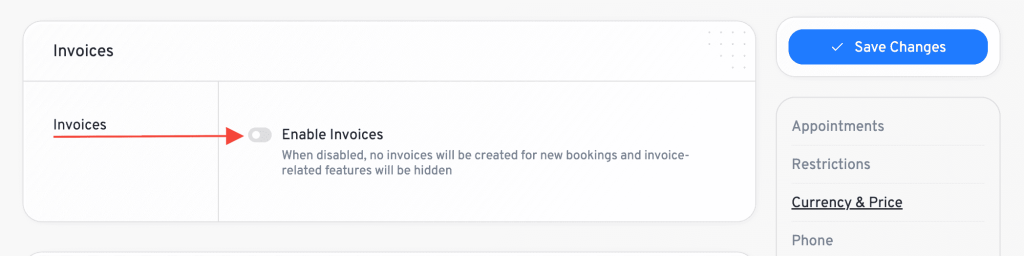
Enable Invoices
To enable invoices:
- Go to LatePoint > Settings > General
- Scroll to the Invoices section
- Enable the Invoices toggle
- Click Save Changes
Once enabled, invoices will be automatically created for new orders.
Configure Invoice Settings
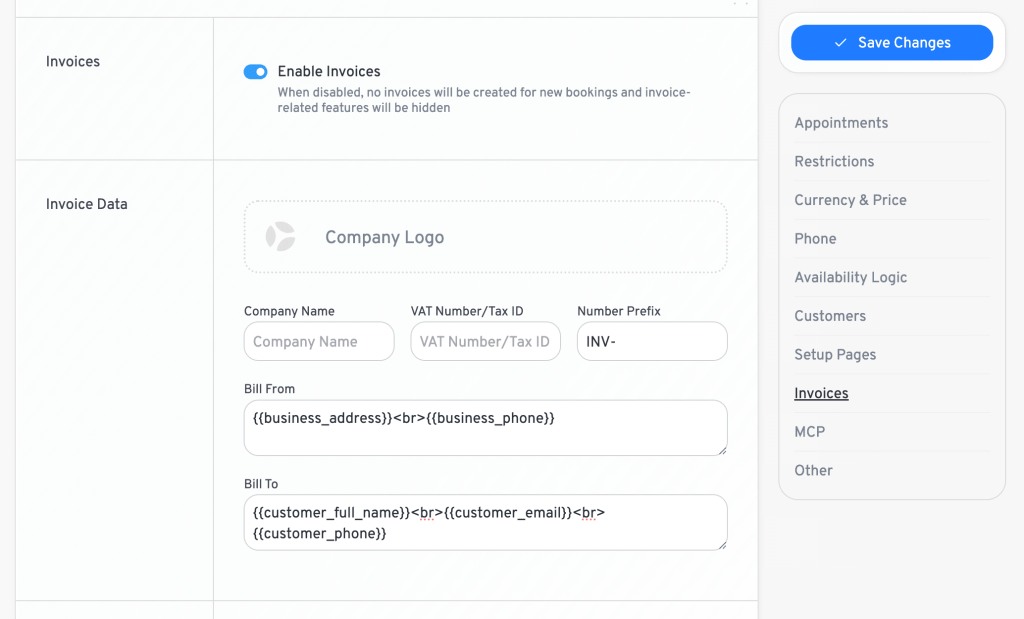
You can customize the information displayed on your invoices.
- Company Logo – Upload your business logo
- Company Name – Your business name
- VAT Number / Tax ID – Optional tax identification number
- Number Prefix – Prefix used for invoice numbers (for example: INV-)
- Bill From – Your business address and contact information
- Bill To – Customer billing information template
Invoice Creation
Invoices are automatically generated when a customer places an order.
The number of invoices created depends on the selected payment option.
Full Payment
When the customer pays the full amount during booking:
- One invoice is created for the full order amount
- The invoice is automatically marked as paid after successful payment
Deposit Payment
When deposits are enabled:
- A deposit invoice is created for the amount paid at booking
- A second invoice is created for the remaining balance
- The remaining balance invoice is due on the booking date
Pay Later
When the customer chooses a local or offline payment method:
- One invoice is created for the full amount
- The invoice remains open until payment is received
Free Bookings
By default, LatePoint does not create invoices for orders with a total amount of $0.00.
This includes:
- Free services
- Orders discounted to zero using coupons
Create Invoices for Free Bookings
To generate invoices for free bookings:
- Go to LatePoint > Settings > General
- Open the Invoices section
- Enable Create invoices for free bookings
- Save changes
When enabled, invoices will be generated for all bookings, including those with a zero total.

Invoice Statuses
Invoices can have one of the following statuses:
| Status | Description |
|---|---|
| Open | Awaiting payment |
| Paid | Fully paid |
| Partially Paid | Partial payment received |
| Draft | Created but not finalized |
| Void | Cancelled invoice |
| Uncollectible | Payment cannot be collected |
Payment Portions
Invoices can be associated with different payment portions:
| Type | Description |
|---|---|
| Full | Covers the entire order amount |
| Deposit | Covers the deposit amount |
| Remaining | Covers the outstanding balance |
| Custom | Created manually by an administrator |
Manage Invoices
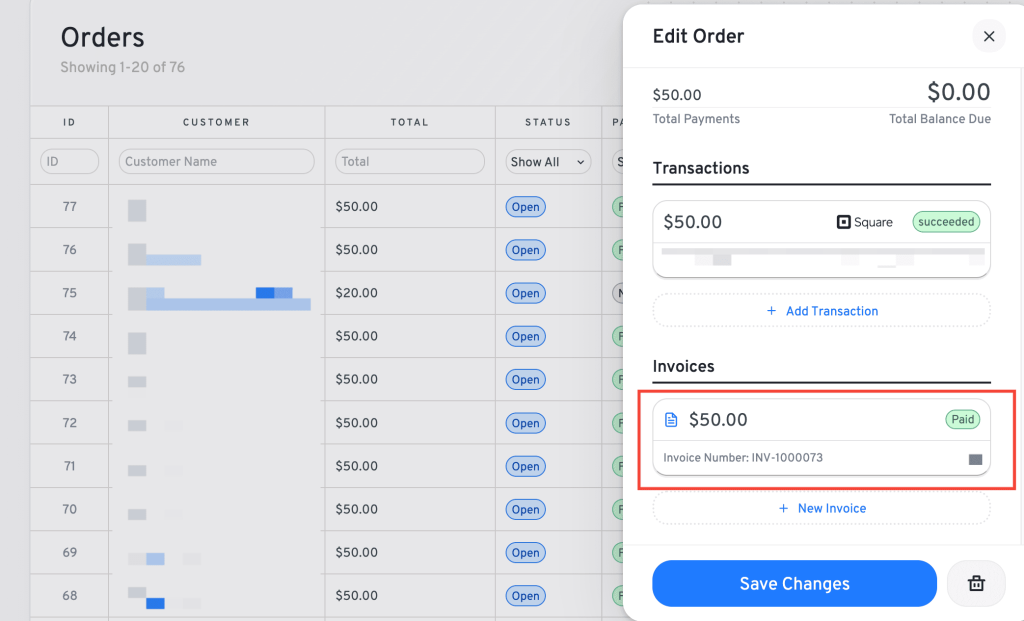
Invoices can be managed directly from an order.
View Invoices
- Go to LatePoint > Orders
- Open an order
- Scroll to the Invoices section
All invoices associated with the order will be displayed.
Create an Invoice Manually
To create an additional invoice:
- Open the order
- Click Create Invoice
- Enter the invoice amount
- Select a payment portion
- Set a due date
- Save the invoice
Manually created invoices use the Custom payment portion type.
Change Invoice Status
To update an invoice status:
- Open the invoice
- Select Change Status
- Choose the desired status
- Save changes
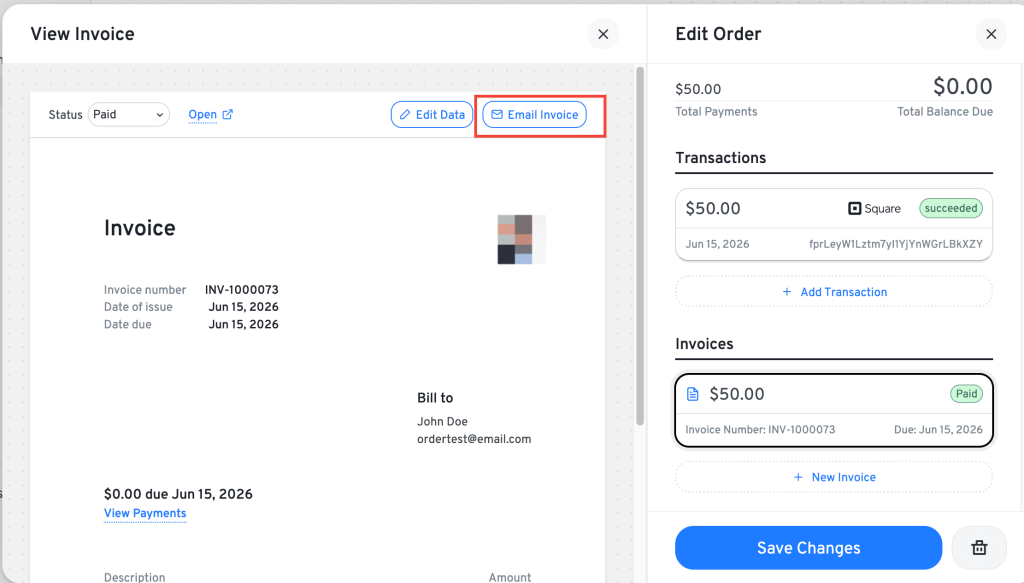
Email an Invoice
To send an invoice to a customer:
- Open the invoice
- Click Email
- Review the subject and message
- Click Send
The customer will receive a link to view and pay the invoice online.
Edit Invoice Information
Invoice details can be updated after creation.
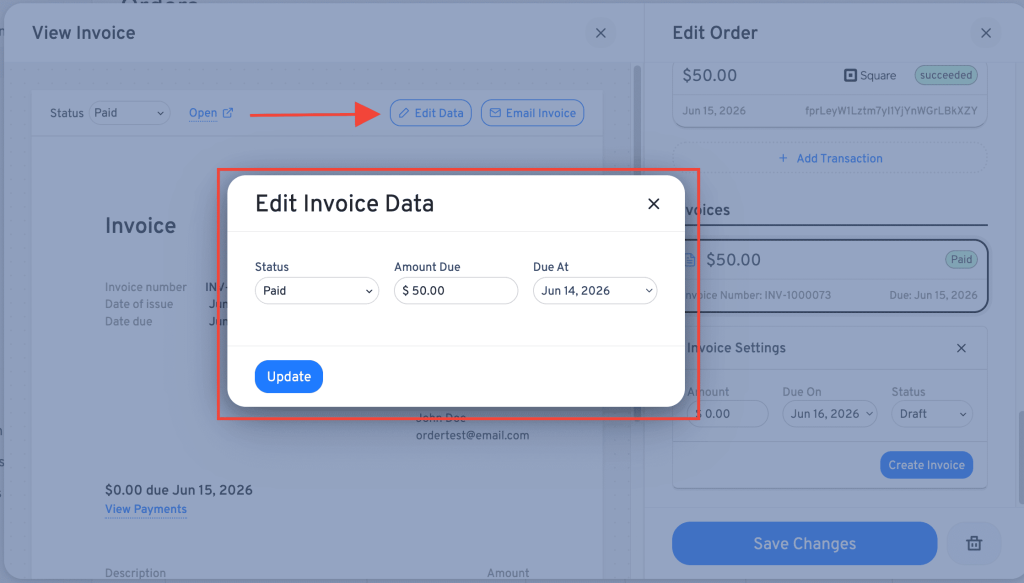
To edit an invoice:
- Open the invoice
- Click Edit Data
- Update the required information
- Save changes
Any changes will be reflected when the invoice is viewed or downloaded.
We don't respond to the article feedback, we use it to improve our support content.