
- How to Display Tax-Inclusive Prices in LatePoint
- Bundled Services
- Managing Bookings With The New Shopping Cart
- Set custom start date for the calendar on your booking form
- How to make Phone Number a required field?
- How to Show Only Services or Only Bundles in a Booking Form
- How to Set Base Fee for Group Bookings
- How to Show Custom Display Price for Bundles
- Add booking form directly on a page
- Redirect to a custom “Thank you” page after booking is complete.
- Add custom content before or after booking steps
- Customize Book Button Appearance
- Add preselected Agent, Service or Location on Book Appointment Button or Form
- How to change time slot style on the calendar?
- Custom CSS for changing colors
- Booking Form Editor
- Specify which services, agents and locations will be available on a booking form
- How to pick specific categories to be displayed on the booking form
- How to show only services from specific category
- Set custom fonts for the booking form
- How to setup Facebook Pixel
- How to Disable the Messaging Functionality in LatePoint
- How to upgrade to Version 5?
- How to Update to Version 5.1.0
- Which addons are part of a PRO bundle in version 5?
- How to deactivate my license from a website I no longer use.
- Redirect to a custom “Thank you” page after booking is complete.
- How to add a link to terms of service checkbox custom field
- Edit content of the left panel section
- How to enable self hosted Google Calendar setup?
- Add a trigger to custom element to open a booking form
- How to Create Payment Links in LatePoint
- How to Manage Assets
- How to Pre-fill Customer Fields from URL Parameters
- How to allow agents log into their own dashboard to manage their schedules and appointments
- Generate Client ID and Secret for Google Calendar integration
- How to Completely Remove All LatePoint Data on Plugin Deletion
- How to Automatically Delete Old Activity Log Entries
- Understanding Payment Processing Fees
- How to Issue Refunds in LatePoint
- How to Use Invoices in LatePoint
- How to Hide the “New Appointment” Button and Tab on the Customer Dashboard
- How does LatePoint send emails?
- How to enable debug log?
- Add to Calendar link is not working
- Getting “One of the plugins is invalid” error when installing add-ons
- Error: unexpected ‘int’, expecting function…
- Service categories not showing during booking process
- Error: Cannot read properties of null (reading: verifyBuyer)
- WordPress Users still can’t login, even when “Use WordPress users as customers” option is checked
- New service is being created when trying to update existing service.
- Auto-sync of events from Google Calendar is not working
How to Hide the “New Appointment” Button and Tab on the Customer Dashboard
By default, the Customer Dashboard allows customers to create new bookings using the New Appointment tab and + New Appointment buttons.
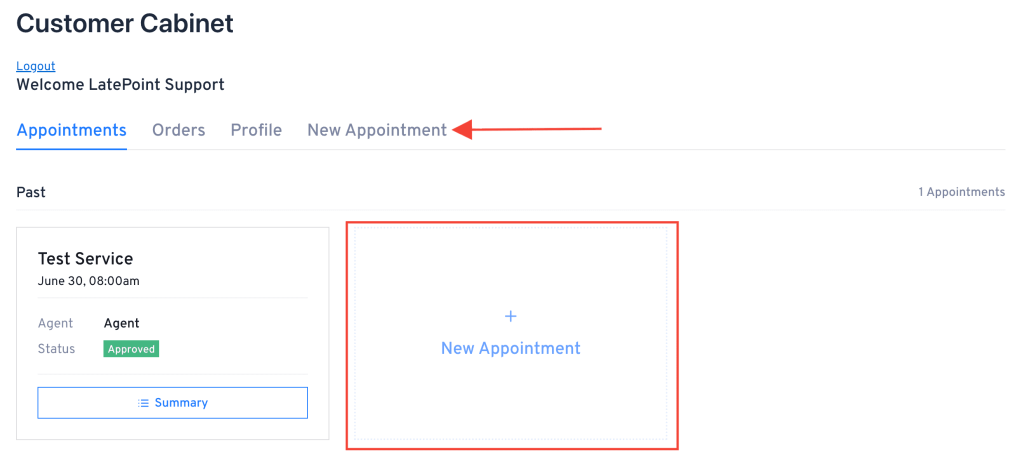
If you only want customers to manage their existing appointments, you can hide this UI.
Using the Customer Dashboard Widget or Block
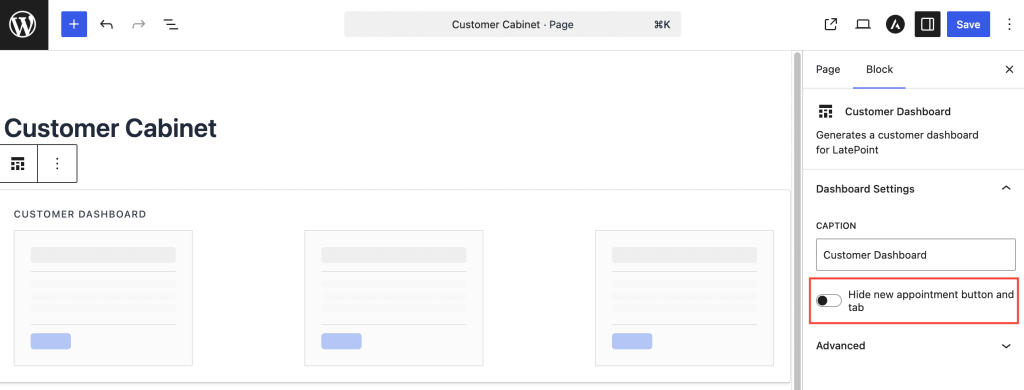
If you added the Customer Dashboard using the Gutenberg block, Elementor widget, or Bricks widget:
- Edit the page containing the Customer Dashboard.
- Select the Customer Dashboard block/widget.
- Enable the Hide New Appointment UI option.
- Save the page.
Using the Shortcode
If you are using the shortcode, add the hide_new_appointment_ui attribute:
[latepoint_customer_dashboard hide_new_appointment_ui=”yes”]
What This Hides
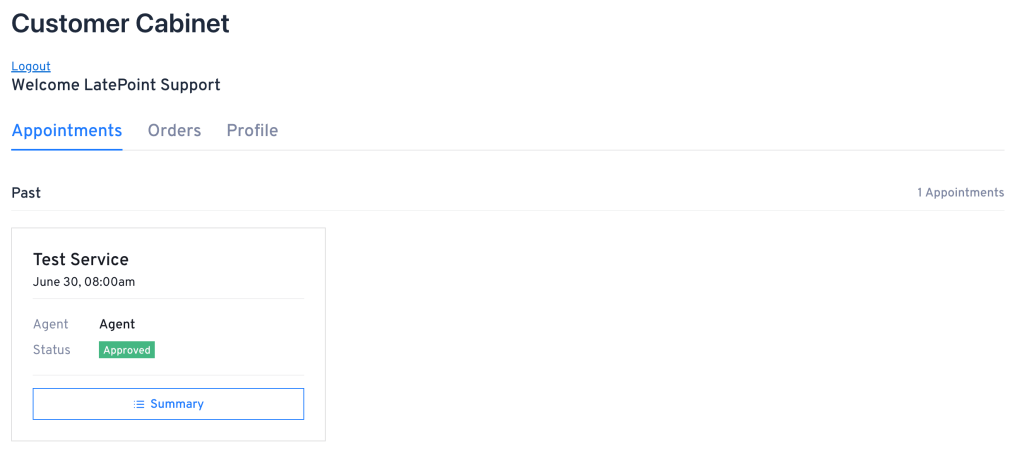
Enabling this option hides:
- The New Appointment tab in the dashboard navigation.
- The + New Appointment button in the Upcoming appointments section.
- The + New Appointment button in the Past appointments section.
- The + New Appointment button in the Cancelled appointments section.
This setting only affects the Customer Dashboard. It does not disable booking forms or booking buttons elsewhere on your website. Customers can still view and manage their existing appointments, orders, and profile information.
We don't respond to the article feedback, we use it to improve our support content.